There are a number of review tools available for teachers to use to add interest to studying information. I hear the sounds of Kahoot, Socrative and Formative and I get encouraged by the excitement that is stirred in students through gamifying studying that I remember being boring a laborious. Another resource that I came across on Twitter today adds to the growing number of resources that can be used to encourage the excitement. Quizizz allows for multi-player practice encouraging collaboration. It does require that students under the age of 13 have parent permission, but it also has a way for students to play without registration. Similar to other resources, once a teacher initiates a quiz, a code is generated for the quiz in which students enter to play. Students answer the questions at their own pace and once they complete the question set, the can review their answers while awaiting the rest of the class to finish. Quizziz has many already created question sets of which you can try out. Give it a try. Here's a quick video walk through.
Additionally, Quizziz has added a feature for homework in which you can launch a quiz using the homework feature that will allow you to set a deadline for the homework. The assignment displays live and the reports feature will tabulate during the window of which you set for the quiz. They have recently added a feature to this that allows students to resume a homework game that they may have started before. This would be a great test review in which students begin in class and then finish at home!
Quizizz keeps a blog with some great tips that is worth checking out. I'd love to hear from anyone who give this resource a try! Let me know how it goes!
I am always looking for an easy way to digitally complete formative assessment for teachers. It seems like there are always so many different hoops to jump through to get to the actual assessment piece and so when my friend Tim Childers tweeted out about Formative, a great tool for collecting live formative results from students, I investigated. (Actually, for most people who know Tim, we all listen when he Tweets, posts or otherwise makes his digital mark. It is always good and you should all follow him here @tchilders.)
Formative assessment is loosely defined as assessment used to collect feedback that guide the lesson, and learning for the students. Generally they are low stakes assessments that help personalize and support the flow of the instruction. With that in mind, Formative is a tool for collecting information that helps the teacher better know what students need.
One unique feature of Formative is that it allows for personal responses in the form of written responses, drawings or even through the submission of an image. With the ability for a student to submit an image or drawing it opens opportunity for creative unique responses that are otherwise hard to collect. A sample of the tutorial drawn responses is shown below.
With Formative teachers will be able to view live results of the students as they work in class. Another great feature is the ability to share an assessment with other teachers.
Upon logging in as a teacher you are presented with the Formative dashboard and a tutorial and sample assessments to help you get going. Formative also has this great Google Doc to walk you through their product. Formative has a channel on YouTube full of various topics in which you can learn all you need to know. They are very well done and brief enough to allow you to select only those that you need to get going. The introductory video is here and should give you a great overview.
Formative's claim is that the tool works on any platform. I have not tried it on all devices but I would guess that some forms of entry, such as drawing a response, would be easier on a tablet device than a Chromebook or computer. Additionally, it is important to know that Formative's Privacy Policy requests that if a child in under the age of 13 that consent is obtained by a parent or guardian.
I am really excited to see how Formative can be used in various classrooms. Please share or comment if you are or have used it!
In an effort to focus as well as digitize the learning experience for students there are a number of resources out there to explore. Many of them with similar features. Working with teachers it becomes challenging to know just what would be the preferred resource for each classroom. So, I thought I would showcase them all in one location.
PearDeck is an inquiry-based learning tool. A teacher creates a presentation and shares it with the students through a code. The teacher sees which students have joined the session. As the teacher advances, the displayed teacher screen requests students to respond in a variety of ways. The teacher can lock in student answers so they can no longer change them and display all student answers joined on one screen. These responses can be in text form, by sliding a marker on a map, giving a thumbs up, drawing or other standard responses. Tools such as dragging a marker on the screen, drawing and Google Slide importing are a part of the paid features. For free teachers can have up to 30 participants, use text slides, multiple choice, number slides and unlimited PearDecks. PearDeck is available in the Chrome WebStore.
Chromebooks have a lot of great abilities that are often underused. One such ability is the webcam. In many schools where we turn off the student's access to Google Hangouts, the students are left with few uses for the webcam. However, the webcam can be a powerful tool not only to take video, but also to take images and add creativity to student work. When we can make use of a student's images, videos, hand drawings and authentic work, we add credibility to their work that adds to a feeling of ownership of their work. In an effort to capture some of these ideas, I created a list ideas. To be clear the goal is not the use of the technology, but the gain that the student has in ownership, creativity and personalizing their work. Here are just a few ideas that I just know will make the difference for some of your talented students!
Artwork Portfolios - Before sending artwork home to students, have them snap a photo of the work and blog about it. They can explain the process, what they learned and capture their thoughts on the project. Then, share these reflections with the parents. From a parent's perspective, I find I get the artwork home with my kids but rarely have an appreciation for the work involved or learning that my children gained through the project. Additionally there is a great record of the project.
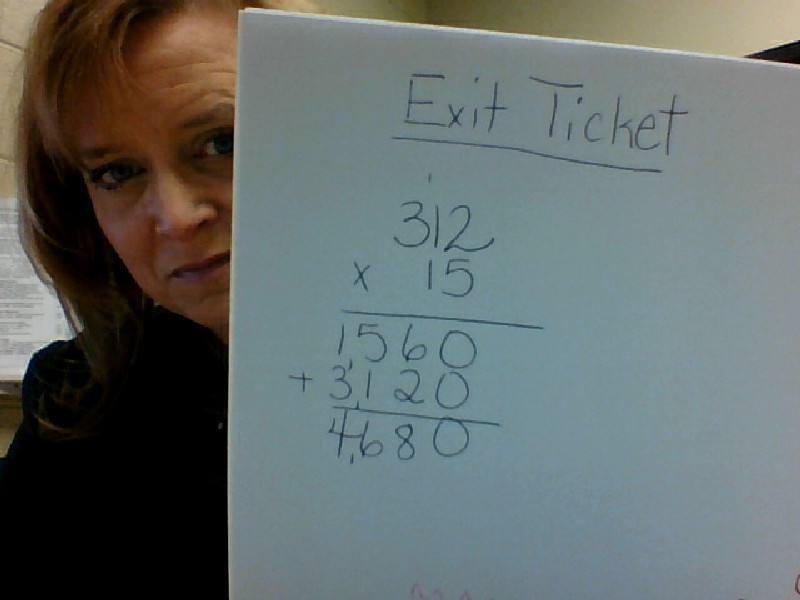
Show Your Work! - Have students share their work in math often hard to capture or create digitally. What I love about this is the ownership that students have as it is still in their own handwriting. Students can then draft the steps to solving the problem in text along with the image shown. In my sample I peeked around the page as I took the picture but how cute would it be to have a student's
Snap a Team Selfie - Have a group of students snap a team selfie to show who worked on a project and then display this as an opening slide for a presentation. Give a little ownership!
Capture the Process - We often say that the journey is more important than the destination but we only celebrate the final product with students. So much of the learning happens as students move along a learning process. Capture the steps to the process, the struggles, successes and landmarks through photos.
Create Photo Assessments - Have students submit a photo and summary of their work and learning as an assessment and record of their learning.
It seems like this small list just scratches the surface of the many creative ways you could use images and the Chromebook's camera. What ways do you use it?
Oral reading fluency can be so difficult to assess naturally with students as well as time consuming. As an educator collecting running records from students I have often wondered about the students who get nervous reading aloud to me and how that affects their performance. Then I heard about Fluency Tutor by Texthelp, and I can't wait to see it in action.
Fluency Tutor is an online tool, available in the Chrome Webstore as an app for both students and teachers, that supports oral reading fluency and comprehension. The software incorporates Lexile-leveled passages for students in elementary and secondary levels. Students are able to work independently to practice reading, record and submit assessments and monitor their progress. Educators can assign specific passages to practice or assess, collect and listen to the students' submitted work and then mark or score them when time allows. Teachers can set targets for students including Correct Words Per Minute and Lexile levels. Parents have the ability to listen to the information the students have recorded as well.
After learning more about this resource, I wondered about that shy or those that get anxious about reading in the corner or hall to their teacher of reading specialist. This resource seems like it would break down this barrier for many students. I am excited to explore this software with students!
I am super excited about Super Quiz! There are a few really great Add Ons out there for Google Docs. Super Quiz, an Add On available for Google Sheets has enormous potential for teachers that like to use Google Form to get a quick assessment for student work. What makes Super Quiz a more useful tool that Flubaroo, another tool used to grade or score a Google Form, is the Super Quiz will not only mark the answers of each student's submission, but it will grade upon submission, created a breakdown of scores in an easy to view format, allows for the teacher to generate personalized feedback of the performance of each quiz for each student as well as send the feedback pages to the students. That seems awesome enough, but the teacher can also create a "trigger" that will grade the form upon submission so that the entire process becomes an automatic process.
I see this being used in several ways for a classroom. Here are just a few of the ways I can see this being really helpful for a classroom:
Pretests for students prior to instruction.
Forms set up to be study guides/review for an upcoming assessment. Upon completion students receive a personalized document with suggested study paths for the larger assessment.
To assist students in selecting a preference for an upcoming project or learning style. A form is created in which students mark their likes and dislikes. Upon completion, Super Quiz's evaluation sends a suggested resource and path based on their responses.
Combined with the use of Flipped Learning Instructional Videos to assist students in self-differentiating and choosing applicable learning.
Results collected through Super Quiz can guide instructional groups within the classroom to target learning needs of the classroom.
***Outside of the classroom I have Super Quiz running on some self-guided Google Apps for Education professional development to assist the teachers in determining what areas they need to concentrate their time on. It seems to be running really well.
Setting up Super Quiz takes a little time although it is something that once you learn and understand it, it gets easier each time. The creator of Super Quiz has a great tutorial video here. Although lengthy it really helped me to set up the one that I have running complete with a trigger. In addition, there is a step-by-step tutorial on the Super Quiz creator's website here.
My greatest take-away from this summer is 81 Dash. After an incident in which some students (aged within the Terms of Service for the back channel they were using) launched their own back channel and used it to log into the room as other students and bully, I had sworn off back channels for younger students. If we could not keep the environment safe for kids, I was not interested. Then I learned of 81 Dash at the Discovery Educator Network Summer Institute from Carlos Fernandez, the creator.
81 Dash is a resource created to provide a safe, communication tool for kids in which the teachers have control over the space. This tool allows students to chat in real time, share files, take notes collaboratively all while keeping them in a safe environment controlled by the teacher. The use of 81 Dash requires that anyone under the age of 18 have parent consent before creating an account. I would not see any reason not to give this communication tool a spin in the classroom. To watch a great tutorial and overview of 81 Dash, check out this amazing video created by another great educator Tim Childers. Some ideas for use might include:
Allow students to collaboratively note take during a lesson
Allow for students to chat and collaborate as they watch a video, then use the chat to spark discussion live after the video.
Assign a moderator to keep track of the discussions and have students discuss as they learn through an online webinar.
Encourage an outside resource to hold a classroom discussion with your students through 81 Dash.
During a classroom read aloud, have students discussion the content of the book to sharpen listening skills.
Keep a "room" of discussion open through the year for quick feedback and exit ticket responses to the classroom work on a regular basis.
Use 81 Dash in a staff meeting to capture thoughts, questions, and ideas while keeping the side chatter down.
Use 81 Dash before a lesson to capture "I Wonder" thoughts, during the lesson for the "I Never Knew" and after the lesson to have students share a document in which they summarize the learning.
There are so many ways to use this tool. I cannot wait for school to start to see the results of learning with 81 Dash!
I recently came across a post on Educational Technology and Mobile Learning's blog that shared 7 Great Web Tools to Help Students Study Collaboratively. I explored some new ones, but one that really caught my eye was ExamTime. From the name, I expected it to be an assessment tool, but it is really so much more than that and very useful as a learning platform overall and it is FREE.
An overview video gives you just a snapshot, but I'll explore the great tools contained in the resource as well:
MindMaps Map Tool
Good digital maps that don't require accounts, are easy to download and use can be hard to find. The ExamTime MindMaps tool allows you to easily map out thinking, connect other ExamTime tools, add notes to nodes and collaborate on all your thinking. You can play an animated version of the MindMap as well as download a png of the map when done. A how-to video is also available.
Flashcards Tool
Memorization work in a classroom is tedious but paper flash cards are even more tedious. As a parent, I hate them as I find the "set" in the bottom of a backpack but never know if the set is complete. Digital flashcards, easily shared among classmates and easy to make are a great feature within MindMaps. Check out the how-to video here.
Quiz Tool
The Quiz Tool is provided as a tool that students can use to help study for the exams the teacher might give, but not necessarily to replace the teacher's assessment. I created a simple quiz and was delighted to see that you can send the quiz out via URL or embed. This only works if the quiz is public. A private quiz can be shared with someone through an ExamTime account grouping or via direct email. This makes the quiz tool a ver usable resource. The user experience with the Quiz Tool is great! After taking a quiz, the user submits for results and then can even review each question. Again, a great tutorial is available to making a quiz.
StudyPlanner
Study planner provides as student with a drag and drop organizational tool that would make partitioning out a larger task into work-able pieces, plan out group work with a team and/or set up tasks to ensure completion. While similar to Google's Calendar, it might be a resource for older students to see the details in a sequential manner. The video is also complete on this tool.
There are a few other tools with this great resource that are somewhat repetitive to the Google Apps tools such as the Notes feature, but this is certainly a resource that is worthwhile to explore for a classroom. Students that need supervision, organizational help, and teacher support, will find this to be very valuable.
Google Docs has a few new Add-Ons that are worth checking out! It had been a while since I check back into the Google Add-on menu. I suspect that the resources available in the Google Docs Add-on page will grow quickly and in just the past few weeks there are some notable new ones.
If you are not familiar with Google Docs Add-ons, they appear in the main menu bar after opening a Google Doc or Sheet. You will see different Add-ons depending on which App you are using. The ones that run on a Google Spreadsheet (like the Doctopus Add-on) have no use for a Document, so they do not show when entering the Add-ons from a Document. To explore the Add-ons first open a Document or Spreadsheet. In the top menu bar, click Add-ons, and Get Add-ons as shown:
Much like you would see in the Google Store, you will see icons of the available Odd-ons. Clicking on the icon will bring up information about that specific tool. The benefit of Add-ons is that they work within the document type that you are working on and you do not have to leave the document to make use of the tool. When this feature first become available, you just knew it was something that would take off, and I suspect it is beginning to!
Here are a few of the new Add-ons I am excited to explore how they can make a difference in the classroom as well as some that have been there from the start but are worth looking at again!:
Docs Add-ons
g(Math)
This Add-on addresses a problem that math teachers have complained about when using Google Docs for some time. This tool will allow the user to create complex math and graphs from within the Google Doc from a sidebar tool. There is a graph creator by which you type in an equation (y= formatted) and it will display the graph for the equation. It also will create geometric signs, custom characters and formulas. The creator of g(Math) has a great tutorial that will be valuable to those deciding if this is a worthwhile Add-on:
Openclipart
A second tool that is available in Google Docs is OpenClipArt. This resources provides over 50,000 images as clip art from a sidebar in the Google Docs window. This is a fantastic resource for educators and students wanting to add interest, color or image resources to their work.
Sheets Add-ons
Doctopus
Doctopus is a well-loved scripts that you used to have to access through the scripts menu but is now and Add-on. This script takes you class spreadsheet of names and emails and will organize and disseminate documents, assignments, and materials to certain or all students' Google Drives. It will name the documents for each student and will even allow you to set up sharing settings.
This video should get you started:
Flubaroo
Again, a well-loved script that is now available as an Add-on, Flubaroo is fantastic. This script will support you as you assess students. It will help you to grade, analyze and even email the students the results of the assessment. An overview video should help you see what this script has to offer:
All of these Add-ons seem to be "adding on" quickly to keep checking back for more!
PowerPoints, Keynote and Google Presentations are not necessarily my favorite choice for sharing information with large groups of people, but sometimes they are just what is needed. If you are going to use a presentation, why not make it viewable and available for each student as the information is presented? It gets even better as you can also add interactivity to run a quick poll of the group using the information on the slide itself! Everyslide is super simple to use and does not require any type of install for you or the students.
It works like this:
Upload any presentation you have already created to your free educator Everyslide account.
Click "present".
A unique code will be generated of which you can share with the class.
Ask for feedback or run a poll as you present.
Students will be prompted to enter their email addresses at the end of the presentation, if you want to collect data on the class. Information about the responses and students will be downloaded to a spreadsheet.
I have been looking around for a good extension that could be added to student accounts ahead of SMARTER Balanced or research projects that would allow students better practice in the process of taking notes digitally with a mini-window while viewing content on another window. This is a task students will see more and more with testing and in digital work.
Practicing the concept of taking notes, capturing the main idea, collecting data and information from various text, graphs, and online sources is an incredibly difficult but useful skill kids need to learn. In my search for a good app or extension, I have come across many different resources, although NoteOn seems to be the best one thus far. What I like about the NoteOn extension is that the extension icon (as shown):
is obviously a note app. Students can title the note, carry the note from different pages, and they can organize the saved notes by color scheme. Best of all: it auto saves!
Just a few great uses for NoteOn in the classroom might include:
A research tool for organizing notes as students navigate around the web.
A place to store citations, websites, etc. on a different topic as students explore a specific topic.
Using the colors assigned to notes, help students assign a color scheme to the types of notes (dates, main idea, famous people, etc.) and/or areas of research within a larger topic.
Helping students be more productive using technology tools is a great thing. What's even better is when that same tool supports learning as well. What is beyond better (epic?) is when a tool also support students in preparing for activities they will be asked to do on state testing, in Wisconsin the SMARTER Balanced Assessment. Tab Scissors and Tab Glue are two Google Chrome Web Store Extensions that I have used all year as a productivity tool, but one that I recommend teachers work with students to use in the classroom.
Tab Glue and Tab Scissors are extensions so they will sit in the space to the left of the OmniBox of your browser (the URL address bar). When you add them, through the Chrome Web Store, they will look like this:
As we are not working within Google Apps for Education so much of our work including preparation of presentations, work processing, etc. happens in a browser between many tabs. Sometimes you find yourself frequently switching between tabs. While it would be convenient if we all had a second monitor to place one window on each monitor while we work, that is often not the case. Tab Scissors allows you to split your browser window into two separated windows at the tabs you indicate. Simply click the tab of which you want Tab Scissors to split the browser window, click on the Tab Scissor icon, and your page will refresh as two perfectly split pages allowing you to see both tabs simultaneously. Tab Glue, when clicked, will paste these tabs back together as one.
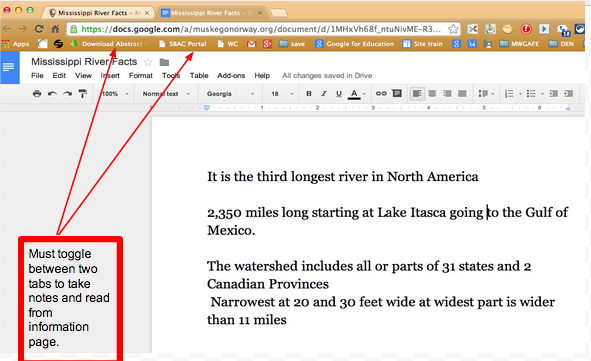
See the image for an example:
Working between two tabs
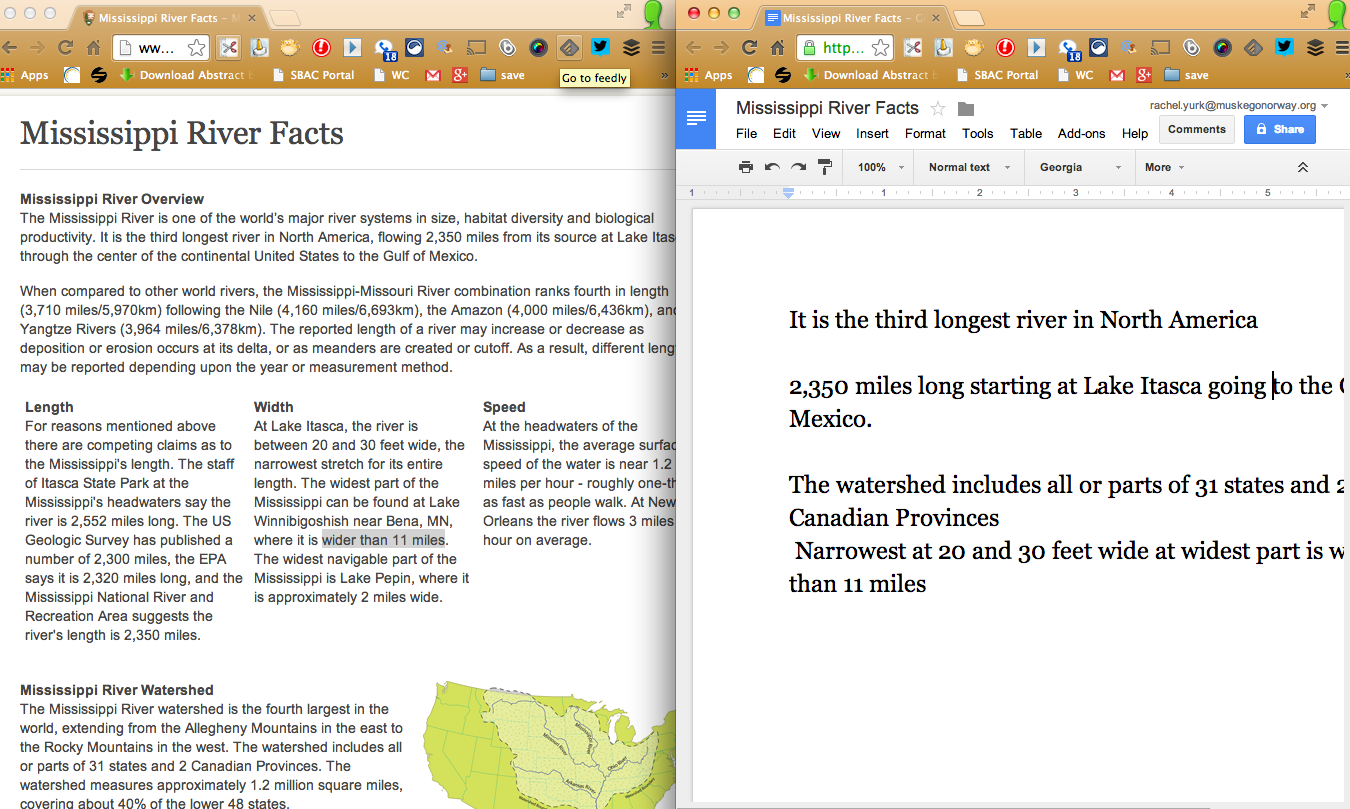
Using Tab Scissors to split the window:
Split window notes
So what does this mean in the classroom and how can it help my students?
As our students are becoming more and more proficient with taking notes, identifying important information, paraphrasing content, and talking in multiple visual cues, we need to find ways to incorporate those skills into everyday teaching. The SMARTER Balanced Assessment had students working with a split screen throughout the entire testing situation. The content on wither side of the window can change, but if they are not practiced at attending and using both windows, they will struggle there and in other areas of digital literacy. Why not practice this concepts with our current content so it does not seem so foreign as we go into testing situations? Here a few suggestions for learning experiences that might help our students become proficient in using side-by-side windows.
Note taking - As shown above a website on one side, notes or a presentation on the other.
Video Notes - While there are some tools for video note taking, this might also be a way to have students view a video and take notes. (Students could even be doing this collaboratively!)
Graphics - Interpretation of a graphic or map
Question sets - Create a Google Form with questions to match the media on the other side of the split screens.
Resources - provide students with an important resource on the left such as a multiplication table or other reference material as they work.
Direction or Steps - Use one screen as a reminder tool for those that need to see directions or steps while they work.
Maps - Allow students to have a map as a resource while they watch a video or read resources about a new area of the country.
Vocabulary - Provide a vocabulary key or have students develop a vocabulary list as they deal with difficult literature.
Review - Have students take a practice test or pretest for a unit of study and capture notes on what they need to study additionally.
Back-channel - Have students in small groups collaborate on a shared Google Doc as a Back-channel discussion while working with digital content.
Edudemic, a blog I read frequently posted recently on How to Use Google Voice in Education. As a Google Voice user, I read and enjoyed the article. I think I even Tweeted out this well-written post. I found it was one of those posts that I just kept thinking more and more about. Not because I disagreed with it, but it made me realize that the idea of using Voice in the classroom had only really been touched on. As I thought about the post, I realized that there were so many other ideas and I kept considering different classroom teachers I knew that I couldn't wait to share the ideas with. As I mentioned, the post is really complete and explains the basics pretty well. While I will give a quick summary follow the links and get an idea and then read on for my thoughts...
Google Voice seems intimidating, but really it's not too complicated. It is a phone number that you clim through the use of your Google account that allows you to send and receive calls through your computer and other phones you have. You can actually set up Google voice to ring other phone lines that you have and interestingly, you can set that up based on the time of day. Google voice can also be set up to ring no phones but only to notify you on your computer of a call. I have a Google voice number on both my personal and work Google accounts. As I travel throughout the day to different buildings, it helps for people to be able to connect with me wherever I happen to be. I have it set so that my computer will alert me to a call and if I do not answer the call, I receive an alert that I have a message and the message is transcribed to text for me to read. If I am in a meeting, teaching or otherwise unable to talk, I can still be made aware of the contents of the call without disrupting others. I have been walking through a hallway and received and answered a call on my computer from Google Voice. Setting it up is simple and accessed through Google.com/voice.
What does this all look like in a classroom setting? Here a just a few ideas I had:
Communication - This seems like an easy one. This number offered to parents with boundaries could be a means of communication for families. By boundaries I mean I will not pick up calls between the hours of 9-3 (or whatever you are willing to offer) but I do value the communication, so please leave me a message and I will return the call.
Texting - While there are texting services out there that are fantastic, www.remind101.com, Google voice does have a text feature that would allow you to text a student and with Voice, a student could text you back. Students could text a response to you as an exit slip response before leaving class. You have a digital record on your computer that could be saved of the text.
For Assessment - I have students working in the Innovation Center each week that are a part of an online foreign language class. These kids have to send recordings to their teacher of verbal responses in Spanish to assignments given by the teacher. Another teacher in my district records using iPods in the hallways. With Google Voice, students could call in their work to the Google voice number. The teacher would have recordings in the Google Voice Message center that are also date and time stamped. The message left can be downloaded and saved.
For projects - While there are other tools out there that allow students to record voice, it is another tool that could be used to record a student's voice for projects in class as you can then save each recording.
Transcripts - In collecting student work verbally, you have a transcript of the message that is left that is editable and also save-able. If Google does not transcribe properly, you can edit so that it is correct, and then save it.
Portfolio - As I have used this with my children I sometimes smile as I listen to an older message from my children. As younger children work on fluency in the classroom, a teacher could be calling their own Voice number and recording the student reading aloud several times a year and saving the recordings as a portfolio sample of fluency. How precious for parents to also have these files!
Accountability - Teachers are always working with students to at least let them know if there is something that they are unable to complete for class rather than to show up and claim they didn't understand something. Have students leave you a Google Voice message if they are confused with an assignment or homework. You have a record of the date and time the call came in as well as recording of their issue. For some kids it is hard to put into an email why they are struggling but being able to tell you in a call might make the difference.
Assistive Technology - We all now that there are times when you have a student with a disability, injury or need that requires them to be able to submit work differently. If they can read something to you, leave a response, text the answer, Google Voice might just be the answer for them. A vision impaired student might really benefit from the ability to leave a voice response.
I am excited to explore even more ideas for this tool in classrooms. I would love to hear other ideas for Google Voice.
I am not a fan of printing especially in an age of digital learning. However, I do think there are just so may good resources out on the web to teach current, relevant, engaging information to students that teachers choose not to use for a variety of reasons. Sometimes the article or webpage contains so much information that the important information is hard to focus upon, sometimes it contains information within the text that is too technical or difficult for students, other times a teacher indicates that they just cannot get it to print or save the way that they want it without ads, other information, etc. That is where Clean Print and Clean Save come into play. This extension for Google Chrome allows you not only to exclude information on the page with the click of a button, but it also allows you to change the font size to make the information readable to all students. You can add notes, grayscale text, and the frame offers a realtime page estimate on your editing so that you can always determine the length of the article you are preparing. Once you are finished, simply save to PDF, Google Docs, Dropbox, print or even share through social media and email. Super simple and super useful in the classroom! Great tutorial to give you an idea of how easy this is to use:
Exit Ticket is a Google Chrome App that can be used in the classroom for formative and summative assessment with the digital tools of a Chromebook Classroom but also with any internet device. The Exit Ticket app has a sign in for both the student and teachers. This tool has so many great components to it that will allow a teacher to differentiate instruction at all levels. Teachers can view students progress and performance progression immediately and adjust and personalize learning. While this apps is aligned to the common core you can also add your own learning targets. Once you create a free account you will find that there is excellent support in the form of a downloadable pdf guide as well as videos to learn how to make the most out of this powerful tool.
If your school is a Google school then Stormboard might be an interesting way to add collaboration and communication among working groups in your classroom. This service, available to students who are 13 and up, has an education portal for teachers that gives an educator an upgrade to their account. Stormboard creates an online whiteboard in which collaborators can create and add sticky notes, images, videos, sketches, documents and more. This upgrade allows for unlimited users, one administrator and unlimited storms or brainstorming sessions. This is available until the end of July when Stormboard will be coming out with their education packages formally. Create an account with Stormboard here, then upgrade the account to an Edu account here.
Stormboard has a great tutorial on their site as well as this great video.
I have spent the last few days at the Illinois Computing Educator Conference and the Illinois Google Summit. I have a ton of resources that I am excited to bring back but an easy one to share and blog about is the Teach Parents Tech site. This site is a parody for those people that frequently find they are in the position of helping parents learn tech. It is easy to use, full of helpful topics, and not necessarily just for kids who want to help frustrated parents learn about tech. I think we all might find something here. The landing page allows you to select and personalize the video and recipient messages. Once complete, it looks like this:
You then enter the email address you want to send the video to and off it goes. the recipient gets a very similar message with the videos embedded right into the email. Each video is about 30 seconds long. There are many videos that any of us could learn from. Easy, simple resource for not just parents.
In educational circles and many meetings I have been involved in lately I keep hearing statements about the number of surveys we are asked to fill out. With the use of Google Apps for Education in the district we are seeing even more as we become familiar with the ease of use of Google Forms. I got to wondering about Forms and Surveys in general. Some questions came up in my mind like:
Isn't it good to ask an opinion, give people a safer way to share their thoughts or be a part of a conversation?
Is a survey or form a digitized worksheet?
What do we gain from gathering opinions if we don't then use the results?
Why do people get upset by filling out a form?
Do students and adults feel the same about filling out a form?
If students are more willing to fill out forms, why is that?
Why do people like to create and send a form to others as a means of gaining opinions or information?
I am not sure I have answers to these questions nor do I think the answers would be easy to find, but I do know some the answers to some and specifically the last one. Creating a Google Form is a great way to gather feedback from a sometimes unwilling participant (think middle school kids). A Form will allow a student to take risks, have purpose when using the Internet, and most importantly, allows the respondent to respond in their thinking time frame as opposed to the time frame allowable in class. On the receiving end of the data and information that is collected through the form, it becomes easily manipulated, sharable and easy to read. I wonder if we underestimate how exciting Forms are for students. I think they enjoy them a lot more than we do. If the feedback is explored, analyzed (possibly to plan for future lessons or improvement) or used to develop interest in the classroom, then I don't think forms are just a digital worksheet. I think forms are an underused tool in our classrooms.
A great tour of Google Forms is here:
Some great Google Form Ideas might be: (Links below are from the Template Gallery)
A survey of the effectiveness of group work after a project is completed. A personal reflection on a book, project or field trip. An exit survey after an important lesson (perhaps a kid review notes to complete it - Even better!) To collect science observations and then work with class data when complete. As a parent information collection at the beginning of the school year. As a Book Log for the year. As a Parent Communication Database A Book Report
So I recently read about a great gMail extension called mxHero. It was recommended as "one of the extensions you cannot live without". So, I put it on my list of things to look into. I went to the Chrome Web Store and looked it up. Here is the link to the Web Store page. This extension adds a toolbox of options to your email. You can....
All of these things seemed to be super cool. Here's what makes it even better, it is free for unlimited emails. So, I explored more and found this fantastic tutorial video that really explains all you would need to know. They even have a mxHero guide available here. I am testing this, but thus for really like it and the tools that it offers me. If email is not just a part of your communication but sometimes helps you remember tasks and other to do items as they come through, then this might be worth checking out!
Yesterday I shared a tool that would help you manage the many great extensions out there for Google Chrome. Therefore today I don't feel guilty for suggesting yet another great extension that you can add to the toolbar because you can use yesterday's tool to manage it all! This morning I came across a resource that shared the extension Clip Better. This handy extension allows you to share a link within an email visually. Traditionally when we share a link within an email we offer the recipient the raw URL in the body of the email. Clip Better allows you to share a visual representation of the website. As you can see below, it will create a preview that includes the image, title, summary and other information about the page you are wanting to share. You can even edit and customize the title and summary in the review, add a personalized comment or note and then send within your Gmail with a single click or select Copy to Clip and it will save the preview on the computer clipboard to be used in another way digitally such as Google Docs.
As I got to thinking about the classroom use for this tool I wondered if you couldn't create a clip for each of the research tools you wanted kids to use to complete a project. I also wondered about students using this tool as a digital, annotated bibliography of web research. However, after trying to create an example, I found that it often copied and pasted into Google Docs and Word with some poor formatting issues. Using in email seems to work best. So, unless they make changes to their formatting, I would use this in the classroom as a tool to share a visual representation of a URL that includes your personal comments, instructions or ideas. Might also be a great communication tool for parents. If you find any other uses in the classroom, please share as I would love to see this tool in use.