This week while working on the resources for the monthly Digital Teacher Challenge in my district, I spent some time digging into Apps. Our theme for February is Get Appy! I concentrated on apps for all different tools as we have Chromebooks (Chrome Webstore and connected Apps), iPads (iOS Apps), and Android Tablets (Google Play Apps). Through this research I came across so many great resources both app and web-based, I thought it was a shame not to share here as well! So here's Five for Friday!
Read with Me - This great app helps teachers to assess fluency in students using custom options. Some of the custom features available in the app are the ability to add your own miscues, name the miscues in a way that makes sense and the ability to count or not count the miscue in the score of the student. Additionally the reports look to be quite complete. They are integrated with Google Sign-in and Schoology.
FlipQuiz - This jeopardy style review game is a simple fee way to make review games with kids. Find quizzes already built or create your own. You can add answers to the game board if you choose so that you can be hands-free and host the game as you walk around the room. Because all the answers are built in, you have the ability to send students a link to the game and they can play and review at home! This is a free resource but with the PRO version you will will get in-game score keeping, the ability to add your personal images, and many other features.
Hstry -This great resources allows you or your students to build a historical timeline rich with media (images, video and audio) in addition to the engagement features of commenting and quizzes or checks for understanding. Timelines can then be shared and easily embedded on a website or blog using the embed code generated on the site. With the free service you can have 200 student timelines. Explore this amazing timeline from their site on Life in the Colonies.
Algebra Calculator - This great resource is a calculator that gives a student step-by-step help on algebra problems. Students can use this to enter a problem and instead of the calculator generating just the answer, it generates each of the steps to get to the final answer with a short explanation of what those steps entailed.
Periodic Table - Chemistry Tools This is a free interactive app for exploring chemical elements and their dependencies in the periodic table. The app allows students to see the elements in various ways and makes the periodic table interactive. See the elements, details, atomic structure, boiling point and more. Student s can sort by properties, classification or state.
I could spend all day exploring the great things to do with maps in the classroom. Between Google Earth and My Maps, there are so many ways to explore the earth and connect it to content in the classroom. As I prepare to teach a class on this for staff, I got lost in the many games that are now available for kids to just have fun with maps. What is really great is that they work on a Chromebook making it something that kids can do on their own devices.
SmartyPins is a marriage of trivia and maps that is wrapped up in a fun game for kids. You begin by selecting a category (arts and culture, science and geography, sports and games, entertainment or history and current events). You are given 1,000 miles certain number of miles of which you can lose for inaccurate answers or gain for fast answers. Areas currently covered are the U.S., U.K., Australia and Canda.
Another equally fun but more interactive map exploring game for kids is called Geoguesser. This web-based game can be played in single player or challenge mode. You are dropped in a street view map and you have to guess where you are. You can move around the location, spin the view to explore and use clues to explore. You gain points while trying to guess 5 different locations. Additional games for various continents and topics are also available. Learn about the location while experiencing real street views! So much fun!
Google Earth Tour Builder, while not a new tool is one that came to mind after sharing yesterday's post about the resource myHistro. Both tools are similar and make use of maps and visuals. Google Tour Builder combines Google Earth and a slideshow in which you can incorporate images, videos and text to connect locations all across the globe to tell a story. While the first thought that comes to mind might be history, there are plenty other ideas for use including biographies, tours of locations, field trip summaries and literature studies.
Google Tour Builder is a tool that requires a computer (not a Chromebook or iPad). On the computer it does require the Google Earth Plugin.
Creating a Tour is not challenging! Check it out!
1. Begin at www.tourbuilder.withgoogle.com. Sign in to your Google Account and click "Create New Tour".
2. Complete the "let's get started" page.
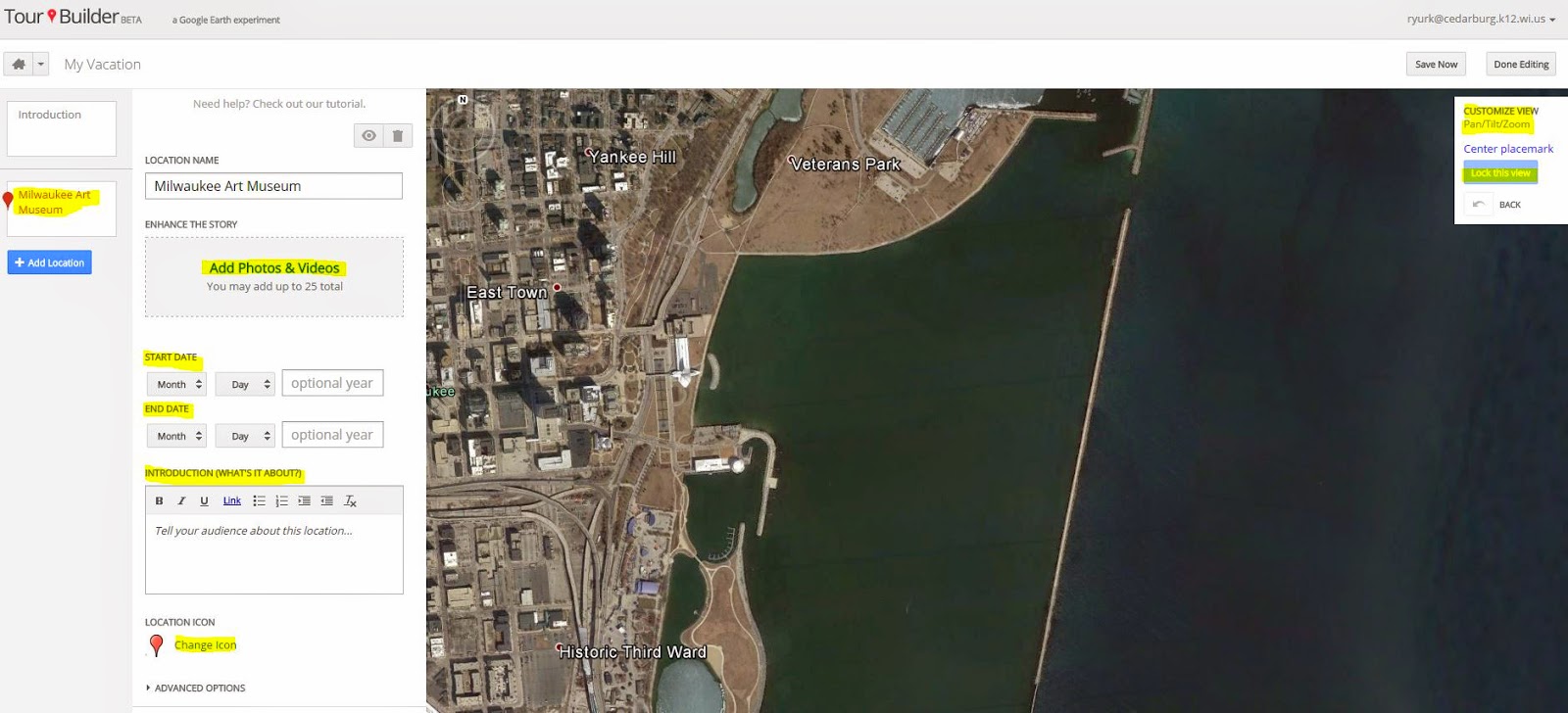
3. The Next page is where you begin to introduce you Tour. Complete the highlighted items and use the available tools to manage the view.
4. Click add a location on the left side panel 5. Type your location into the search or drop a placemark in a location you see on the map. Click "add to tour".
6. Once you Add to tour you then open a window in which you can personalize this location. You can add up to 25 photos and videos, dates, a story about the location, and even change the icon that represents the location on the map. One area not to neglect is the Pan/Tilt/and Zoom of the view in which the location on the map is viewed. Once you have it set, don't forget to "lock the view".
7. Continue to add your locations and they will build on the tour timeline on the left. Once you are done, click "Save Now".
8. Then, just as you would share another Google Doc, you will see a "share" button in the top right hand corner. Click on the share button and change the visibility to your desired settings. Click "done" and you have created your first tour!
If this step-by-step does not help you out, give this tutorial a try!
Google Maps are not just for getting around when you don't know your way...
Google offers some great ways to make use of maps in the classroom. They offer tutorials and resources for all types of map use. From beginning tutorials to more complex, there is a lot to consider. One thing is for certain, this is a resource I wish I saw more use of in the classroom.
Here are a few ideas that I found as I did some exploring:
Google Earth - Allows students to interact with and explore the world in ways unique to the computer experience. While we would all love to head out to Rome and see the history and artifacts there, Google Earth uses imagery that allows kids to travel back in time and view different locations to see how they have changed. with resources that show ideas such as they US Presidents or the trail of Lewis and Clark, this resource will add amazing depth to your units of study. Explore 3D imagery of locations such as Mars in Google Earth or the landing sites of the moon. Students can make use of Real World Math and other lesson plans that use Google Earth to learn new skills. Additionally, Using Tours you can create and play tours of places and content. Tours are a "flying" Google Earth experience in which students will be able to view terrain, maps and navigate using 3D images and even audio. So much to explore.
Google Maps - One of the many resources that Google provides to users is the Google Map. There are many ways in which you can use Google Maps each allowing for different ideas within the classroom. One of my favorite ways to make use of Maps is to use Maps Engine to build your own map. The tool allows you to draw on a map, enter and visualize data, add layers and set specific points for various resources. An easy to follow tutorial can be found here.
I am super excited about Super Quiz! There are a few really great Add Ons out there for Google Docs. Super Quiz, an Add On available for Google Sheets has enormous potential for teachers that like to use Google Form to get a quick assessment for student work. What makes Super Quiz a more useful tool that Flubaroo, another tool used to grade or score a Google Form, is the Super Quiz will not only mark the answers of each student's submission, but it will grade upon submission, created a breakdown of scores in an easy to view format, allows for the teacher to generate personalized feedback of the performance of each quiz for each student as well as send the feedback pages to the students. That seems awesome enough, but the teacher can also create a "trigger" that will grade the form upon submission so that the entire process becomes an automatic process.
I see this being used in several ways for a classroom. Here are just a few of the ways I can see this being really helpful for a classroom:
Pretests for students prior to instruction.
Forms set up to be study guides/review for an upcoming assessment. Upon completion students receive a personalized document with suggested study paths for the larger assessment.
To assist students in selecting a preference for an upcoming project or learning style. A form is created in which students mark their likes and dislikes. Upon completion, Super Quiz's evaluation sends a suggested resource and path based on their responses.
Combined with the use of Flipped Learning Instructional Videos to assist students in self-differentiating and choosing applicable learning.
Results collected through Super Quiz can guide instructional groups within the classroom to target learning needs of the classroom.
***Outside of the classroom I have Super Quiz running on some self-guided Google Apps for Education professional development to assist the teachers in determining what areas they need to concentrate their time on. It seems to be running really well.
Setting up Super Quiz takes a little time although it is something that once you learn and understand it, it gets easier each time. The creator of Super Quiz has a great tutorial video here. Although lengthy it really helped me to set up the one that I have running complete with a trigger. In addition, there is a step-by-step tutorial on the Super Quiz creator's website here.
Knowledge and understanding of current events are an important part of being a good citizen. As adults, most of use dislike the feeling that there is something going on in the world that we know nothing about. Wouldn't it be great if kids would have that same feeling and be driven to know the current events of the world in which they live? Through an account with Discovery Education, you have access to the Global Wrap, a resource that will allow you to instill that drive in your students. Global Wrap is featured on the Discovery Ed homepage after you log in.
Sometimes what's in the news is not always appropriate for the age of students you are working with. Discovery's Global Wrap is organized so that you can show segments or the entire Wrap.
This allows you to be able to select the news you want the students to view or see the entire news in one whole video. You can also chunk it out to allow kids to view and experience a little each day.
Ideas for Classroom Use
Have a Current Events Day of the week.
Assign a segment to different groups through the Assignment Builder and have them share out.
Build a writing prompt about different segments to encourage deeper thinking and responses about the media
Have students select one topic/segment and then have them report out about that particular topic
SumoPaint is a great drawing tool with advanced features is is hard to believe that it is free. The above graphic was created using SumoPaint in a manner of minutes! This online resource does not require any log in, email and allows you to save your drawing in jpg or png formats. What makes this an exciting classroom tool besides the above mentioned features, is that this tool allows you to begin a drawing with an image that you upload from your computer. So, what if students were to upload and label a map, an image to label or something to add information learned to? Students have so many creative elements we often do not tap into and this might be a way to reach some of them. Could students design a class, team or personal logo? The possibilities are endless with such a great tool.
Sometimes engaging games for kids around subjects that are sometimes hard to find. iCivics is a site that is anything but boring and something that students from middle to high school would love! While this website has many different games and resources that I am sure need to be explored, I got stuck playing "Do I have a right?" for far longer than I should have. Students do not need to log in to play but gain the chance to save a game when they do. The game I played allowed me to manage a law firm and hire different lawyers that focus on various civics lessons. Clients come in office and get assigned to the lawyer that specializes in their case. Resources are available to look up information about the law as you decide which laws might apply to the case. The individuals who "show up" to consult with the lawyer encourage the player to look at the real life possibilities surrounding the laws we have. While the game is interesting I couldn't help but think of the fantastic discussions that would surround some of the cases in a classroom. Great content for students. I did not spend a lot of time in the teacher's section but from what I did see, it is full of information for teachers including lesson plans, activities and ideas surrounding many topics for all ages middle to high school. This is certainly a resource not to be missed! To see if iCivics covers areas of your curriculum, check out their scope and sequence information here.

 Read with Me - This great app helps teachers to assess fluency in students using custom options. Some of the custom features available in the app are the ability to add your own miscues, name the miscues in a way that makes sense and the ability to count or not count the miscue in the score of the student. Additionally the reports look to be quite complete. They are integrated with Google Sign-in and Schoology.
 FlipQuiz - This jeopardy style review game is a simple fee way to make review games with kids. Find quizzes already built or create your own. You can add answers to the game board if you choose so that you can be hands-free and host the game as you walk around the room. Because all the answers are built in, you have the ability to send students a link to the game and they can play and review at home! This is a free resource but with the PRO version you will will get in-game score keeping, the ability to add your personal images, and many other features.
  Hstry -This great resources allows you or your students to build a historical timeline rich with media (images, video and audio) in addition to the engagement features of commenting and quizzes or checks for understanding. Timelines can then be shared and easily embedded on a website or blog using the embed code generated on the site. With the free service you can have 200 student timelines. Explore this amazing timeline from their site on Life in the Colonies.
 Algebra Calculator - This great resource is a calculator that gives a student step-by-step help on algebra problems. Students can use this to enter a problem and instead of the calculator generating just the answer, it generates each of the steps to get to the final answer with a short explanation of what those steps entailed.
 Periodic Table - Chemistry Tools This is a free interactive app for exploring chemical elements and their dependencies in the periodic table. The app allows students to see the elements in various ways and makes the periodic table interactive. See the elements, details, atomic structure, boiling point and more. Student s can sort by properties, classification or state.