Showing posts with label Google Docs. Show all posts

Thursday, June 4, 2015

Creativity Using Drawings in Google Docs

Chromebooks have a lot of great abilities that are often underused.  One such ability is the webcam. In many schools where we turn off the student's access to Google Hangouts, the students are left with few uses for the webcam.  However, the webcam can be a powerful tool not only to take video, but also to take images and add creativity to student work.  When we can make use of a student's images, videos, hand drawings and authentic work, we add credibility to their work that adds to a feeling of ownership of their work. In an effort to capture some of these ideas, I created a list ideas.  To be clear the goal is not the use of the technology, but the gain that the student has in ownership, creativity and personalizing their work. Here are just a few ideas that I just know will make the difference for some of your talented students!


May 21, 2015 8:17:55 AM.jpg
  • Artwork Portfolios - Before sending artwork home to students, have them snap a photo of the work and blog about it.  They can explain the process, what they learned and capture their thoughts on the project.  Then, share these reflections with the parents.  From a  parent's perspective, I find I get the artwork home with my kids but rarely have an appreciation for the work involved or learning that my children gained through the project.  Additionally there is a great record of the project.


    May 21, 2015 8:18:40 AM.jpg
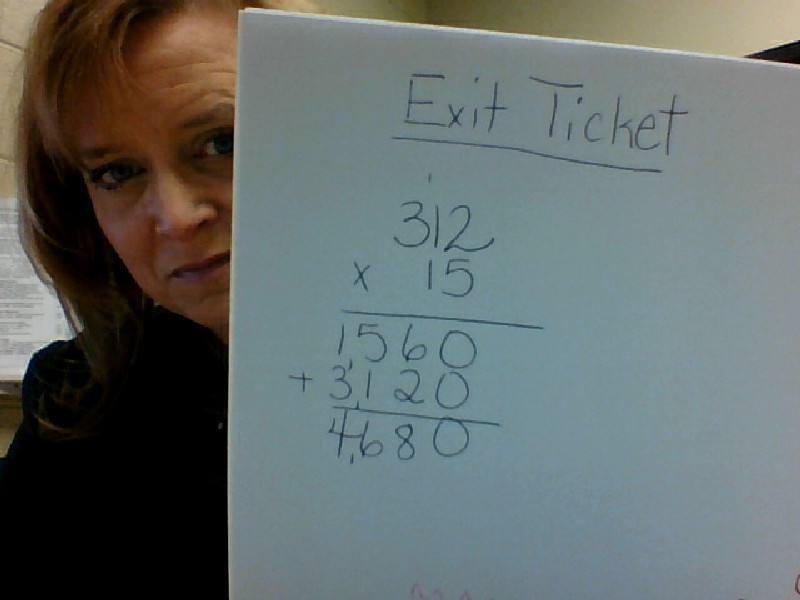
  • Show Your Work! - Have students share their work in math often hard to capture or create digitally.  What I love about this is the ownership that students have as it is still in their own handwriting.  Students can then draft the steps to solving the problem in text along with the image shown. In my sample I peeked around the page as I took the picture but how cute would it be to have a student's 

  • Snap a Team Selfie -  Have a group of students snap a team selfie to show who worked on a project and then display this as an opening slide for a presentation.  Give a little ownership!

  • Capture the Process - We often say that the journey is more important than the destination but we only celebrate the final product with students.  So much of the learning happens as students move along a learning process.  Capture the steps to the process, the struggles, successes and landmarks through photos.

  • Create Photo Assessments - Have students submit a photo and summary of their work and learning as an assessment and record of their learning.
It seems like this small list just scratches the surface of the many creative ways you could use images and the Chromebook's camera.  What ways do you use it?


Monday, November 3, 2014

g(Math) Support through Add Ons


save image
One of the great Add Ons in Google Docs that I love to share with teachers is g(Math).  This tool allows a math teacher to be able to add graphs, complex formulas and equations.  With the addition of the Add On Menu in Google Forms, you will find that g(Math) is also available.  This make for a great tool in the math teacher's tool belt when using Google.  Check out how it works:

  1. Once in a Google Doc or Form go to the Add On menu at the top of the page:  save image
  2. Select "get add ons" from the menu and look for g(Math) as pictured above.  Click on the add on to view more and then the save image button or just the save image from the original menu.
  3. Once the user accepts the permissions, this will add g(Math) to the Add On menu and allow the user to execute it on any document going forward.  
To use g(Math) once added it opens in a document from the AddOns menu at the top of the document. It will open on the right side of the screen.  This tool is also available in Google Forms making the creation of assessments in the classroom a breeze!