Showing posts with label Research. Show all posts
Thursday, March 12, 2015
Visual Timelines with Discussions
Wednesday, September 24, 2014
Google Maps in the Classroom
Google Maps are not just for getting around when you don't know your way...
Google offers some great ways to make use of maps in the classroom. They offer tutorials and resources for all types of map use. From beginning tutorials to more complex, there is a lot to consider. One thing is for certain, this is a resource I wish I saw more use of in the classroom.
Here are a few ideas that I found as I did some exploring:
Google Earth - Allows students to interact with and explore the world in ways unique to the computer experience. While we would all love to head out to Rome and see the history and artifacts there, Google Earth uses imagery that allows kids to travel back in time and view different locations to see how they have changed. with resources that show ideas such as they US Presidents or the trail of Lewis and Clark, this resource will add amazing depth to your units of study. Explore 3D imagery of locations such as Mars in Google Earth or the landing sites of the moon. Students can make use of Real World Math and other lesson plans that use Google Earth to learn new skills. Additionally, Using Tours you can create and play tours of places and content. Tours are a "flying" Google Earth experience in which students will be able to view terrain, maps and navigate using 3D images and even audio. So much to explore.
Google Maps - One of the many resources that Google provides to users is the Google Map. There are many ways in which you can use Google Maps each allowing for different ideas within the classroom. One of my favorite ways to make use of Maps is to use Maps Engine to build your own map. The tool allows you to draw on a map, enter and visualize data, add layers and set specific points for various resources. An easy to follow tutorial can be found here.
Additional Resources:
Google Maps in the Classroom - Created by CUE and WestEd for Google
Google Maps - from Teaching History
How to Create a Map Using Google Maps Engine
40+ Ideas on Using Google Earth and Maps in the Classroom
Videos:
Saturday, April 19, 2014
NoteOn Extension for Chrome
(A SMARTER Balanced Testing Toolkit Post!)
I have been looking around for a good extension that could be added to student accounts ahead of SMARTER Balanced or research projects that would allow students better practice in the process of taking notes digitally with a mini-window while viewing content on another window. This is a task students will see more and more with testing and in digital work.
Practicing the concept of taking notes, capturing the main idea, collecting data and information from various text, graphs, and online sources is an incredibly difficult but useful skill kids need to learn. In my search for a good app or extension, I have come across many different resources, although NoteOn seems to be the best one thus far. What I like about the NoteOn extension is that the extension icon (as shown):
is obviously a note app. Students can title the note, carry the note from different pages, and they can organize the saved notes by color scheme. Best of all: it auto saves!
Just a few great uses for NoteOn in the classroom might include:
- A research tool for organizing notes as students navigate around the web.
- A place to store citations, websites, etc. on a different topic as students explore a specific topic.
- Using the colors assigned to notes, help students assign a color scheme to the types of notes (dates, main idea, famous people, etc.) and/or areas of research within a larger topic.
Monday, April 14, 2014
10 Productivity and Practice Ideas with Tab Glue and Scissors
(A SMARTER Balanced Testing Toolkit Post!)
Helping students be more productive using technology tools is a great thing. What's even better is when that same tool supports learning as well. What is beyond better (epic?) is when a tool also support students in preparing for activities they will be asked to do on state testing, in Wisconsin the SMARTER Balanced Assessment. Tab Scissors and Tab Glue are two Google Chrome Web Store Extensions that I have used all year as a productivity tool, but one that I recommend teachers work with students to use in the classroom. Tab Glue and Tab Scissors are extensions so they will sit in the space to the left of the OmniBox of your browser (the URL address bar). When you add them, through the Chrome Web Store, they will look like this:
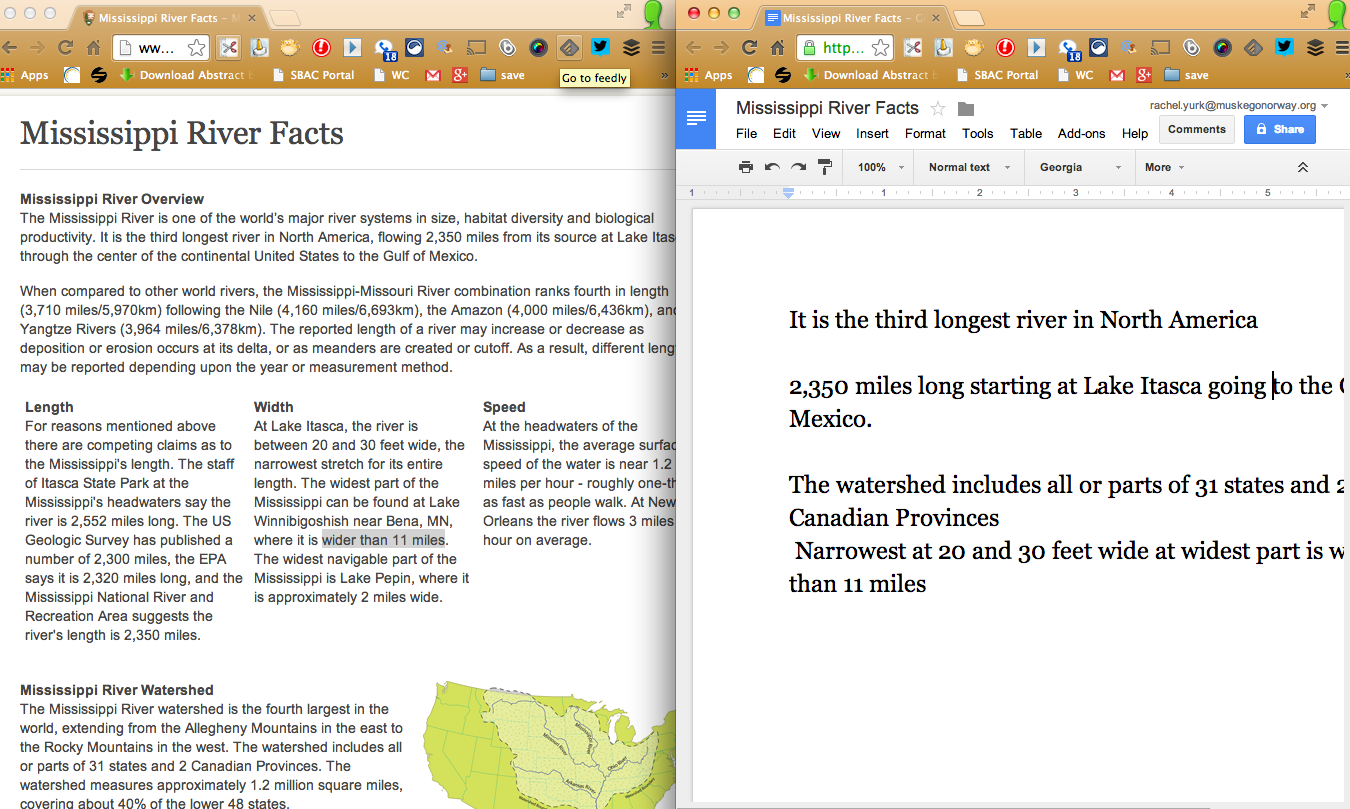
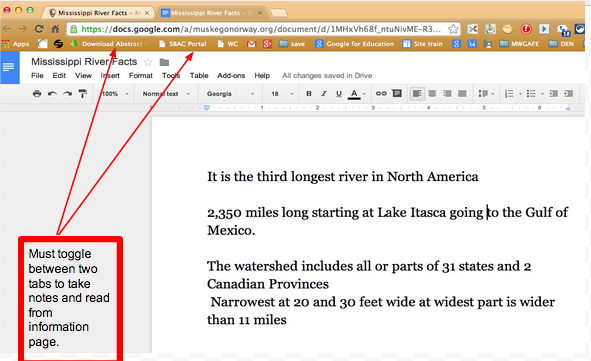
As we are not working within Google Apps for Education so much of our work including preparation of presentations, work processing, etc. happens in a browser between many tabs. Sometimes you find yourself frequently switching between tabs. While it would be convenient if we all had a second monitor to place one window on each monitor while we work, that is often not the case. Tab Scissors allows you to split your browser window into two separated windows at the tabs you indicate. Simply click the tab of which you want Tab Scissors to split the browser window, click on the Tab Scissor icon, and your page will refresh as two perfectly split pages allowing you to see both tabs simultaneously. Tab Glue, when clicked, will paste these tabs back together as one.
See the image for an example:
![]() |
| Working between two tabs |
![]() |
| Split window notes |
So what does this mean in the classroom and how can it help my students?
As our students are becoming more and more proficient with taking notes, identifying important information, paraphrasing content, and talking in multiple visual cues, we need to find ways to incorporate those skills into everyday teaching. The SMARTER Balanced Assessment had students working with a split screen throughout the entire testing situation. The content on wither side of the window can change, but if they are not practiced at attending and using both windows, they will struggle there and in other areas of digital literacy. Why not practice this concepts with our current content so it does not seem so foreign as we go into testing situations? Here a few suggestions for learning experiences that might help our students become proficient in using side-by-side windows.
- Note taking - As shown above a website on one side, notes or a presentation on the other.
- Video Notes - While there are some tools for video note taking, this might also be a way to have students view a video and take notes. (Students could even be doing this collaboratively!)
- Graphics - Interpretation of a graphic or map
- Question sets - Create a Google Form with questions to match the media on the other side of the split screens.
- Resources - provide students with an important resource on the left such as a multiplication table or other reference material as they work.
- Direction or Steps - Use one screen as a reminder tool for those that need to see directions or steps while they work.
- Maps - Allow students to have a map as a resource while they watch a video or read resources about a new area of the country.
- Vocabulary - Provide a vocabulary key or have students develop a vocabulary list as they deal with difficult literature.
- Review - Have students take a practice test or pretest for a unit of study and capture notes on what they need to study additionally.
- Back-channel - Have students in small groups collaborate on a shared Google Doc as a Back-channel discussion while working with digital content.
Labels:
21st Century Learning,
assessment,
Chrome,
classroom,
Common Core,
Google,
Google Docs,
Google Extension,
Literacy,
literature,
maps,
Math,
media,
productivity,
Research,
resources,
SBAC,
Testing Toolkit
Thursday, February 27, 2014
Global Wrap for Current Events
Knowledge and understanding of current events are an important part of being a good citizen. As adults, most of use dislike the feeling that there is something going on in the world that we know nothing about. Wouldn't it be great if kids would have that same feeling and be driven to know the current events of the world in which they live? Through an account with Discovery Education, you have access to the Global Wrap, a resource that will allow you to instill that drive in your students. Global Wrap is featured on the Discovery Ed homepage after you log in.
Sometimes what's in the news is not always appropriate for the age of students you are working with.
Discovery's Global Wrap is organized so that you can show segments or the entire Wrap.
This allows you to be able to select the news you want the students to view or see the entire news in one whole video. You can also chunk it out to allow kids to view and experience a little each day.
Ideas for Classroom Use
- Have a Current Events Day of the week.
- Assign a segment to different groups through the Assignment Builder and have them share out.
- Build a writing prompt about different segments to encourage deeper thinking and responses about the media
- Have students select one topic/segment and then have them report out about that particular topic
Friday, January 3, 2014
Clip Better Extension
Yesterday I shared a tool that would help you manage the many great extensions out there for Google Chrome. Therefore today I don't feel guilty for suggesting yet another great extension that you can add to the toolbar because you can use yesterday's tool to manage it all! This morning I came across a resource that shared the extension Clip Better. This handy extension allows you to share a link within an email visually. Traditionally when we share a link within an email we offer the recipient the raw URL in the body of the email. Clip Better allows you to share a visual representation of the website.
As you can see below, it will create a preview that includes the image, title, summary and other information about the page you are wanting to share. You can even edit and customize the title and summary in the review, add a personalized comment or note and then send within your Gmail with a single click or select Copy to Clip and it will save the preview on the computer clipboard to be used in another way digitally such as Google Docs.
As I got to thinking about the classroom use for this tool I wondered if you couldn't create a clip for each of the research tools you wanted kids to use to complete a project. I also wondered about students using this tool as a digital, annotated bibliography of web research. However, after trying to create an example, I found that it often copied and pasted into Google Docs and Word with some poor formatting issues. Using in email seems to work best. So, unless they make changes to their formatting, I would use this in the classroom as a tool to share a visual representation of a URL that includes your personal comments, instructions or ideas. Might also be a great communication tool for parents.
If you find any other uses in the classroom, please share as I would love to see this tool in use.
As you can see below, it will create a preview that includes the image, title, summary and other information about the page you are wanting to share. You can even edit and customize the title and summary in the review, add a personalized comment or note and then send within your Gmail with a single click or select Copy to Clip and it will save the preview on the computer clipboard to be used in another way digitally such as Google Docs.
As I got to thinking about the classroom use for this tool I wondered if you couldn't create a clip for each of the research tools you wanted kids to use to complete a project. I also wondered about students using this tool as a digital, annotated bibliography of web research. However, after trying to create an example, I found that it often copied and pasted into Google Docs and Word with some poor formatting issues. Using in email seems to work best. So, unless they make changes to their formatting, I would use this in the classroom as a tool to share a visual representation of a URL that includes your personal comments, instructions or ideas. Might also be a great communication tool for parents.
If you find any other uses in the classroom, please share as I would love to see this tool in use.
Thursday, June 6, 2013
Research Made Easier
The slogan "Say more with fewer links" is the slogan for FatURL. This service, would be great for teachers who want students to access only certain resources and would be a fantastic way to ensure safety online and keep kids from doing the "random Google search". This services allows the user to share multiple (up to 3 dozen) websites or URLs by sharing only one URL. What is great for teachers is that this service allows you to edit and add to the URLs that are shared with your link.
When I think of the classroom connection of this service, it would be a great resource for a teacher to use in many situations:
- Research -If you beginning a new unit or a research project. A teacher would be able to share one link with the students and that link would lead kids to the teacher approved sites that the students can use to learn from.
- Skills Practice - Another idea would be to collect websites that students could be using for math or spelling practice. As students complete work in class they would always know that they can find an educationally supported game or skill practice site.
- Web Tools - FatURL might be a great way to share presentation tools that you have approved for student use in your classroom.
There is a little tour here. Consider this for next school year!
Subscribe to:
Posts (Atom)