Showing posts with label literature. Show all posts

Tuesday, September 2, 2014

Get Super Excited About Super Quiz - One Awesome Add On!

I am super excited about Super Quiz!  There are a few really great Add Ons out there for Google Docs.  Super Quiz, an Add On available for Google Sheets has enormous potential for teachers that like to use Google Form to get a quick assessment for student work.  What makes Super Quiz a more useful tool that Flubaroo, another tool used to grade or score a Google Form, is the Super Quiz will not only mark the answers of each student's submission, but it will grade upon submission, created a breakdown of scores in an easy to view format, allows for the teacher to generate personalized feedback of the performance of each quiz for each student as well as send the feedback pages to the students.  That seems awesome enough, but the teacher can also create a "trigger" that will grade the form upon submission so that the entire process becomes an automatic process.  
I see this being used in several ways for a classroom.  Here are just a few of the ways I can see this being really helpful for a classroom:

  1. Pretests for students prior to instruction.
  2. Forms set up to be study guides/review for an upcoming assessment.  Upon completion students receive a personalized document with suggested study paths for the larger assessment.
  3. To assist students in selecting a preference for an upcoming project or learning style.  A form is created in which students mark their likes and dislikes.  Upon completion, Super Quiz's evaluation sends a suggested resource and path based on their responses. 
  4. Combined with the use of Flipped Learning Instructional Videos to assist students in self-differentiating and choosing applicable learning.
  5. Results collected through Super Quiz can guide instructional groups within the classroom to target learning needs of the classroom. 
***Outside of the classroom I have Super Quiz running on some self-guided Google Apps for Education professional development to assist the teachers in determining what areas they need to concentrate their time on.  It seems to be running really well.


Setting up Super Quiz takes a little time although it is something that once you learn and understand it, it gets easier each time.  The creator of Super Quiz has a great tutorial video here.  Although lengthy it really helped me to set up the one that I have running complete with a trigger.  In addition, there is a step-by-step tutorial on the Super Quiz creator's website here.


Monday, April 14, 2014

10 Productivity and Practice Ideas with Tab Glue and Scissors

(A SMARTER Balanced Testing Toolkit Post!)
Helping students be more productive using technology tools is a great thing.  What's even better is when that same tool supports learning as well.  What is beyond better (epic?) is when a tool also support students in preparing for activities they will be asked to do on state testing, in Wisconsin the SMARTER Balanced Assessment.  Tab Scissors and Tab Glue are two Google Chrome Web Store Extensions that I have used all year as a productivity tool, but one that I recommend teachers work with students to use in the classroom.
Tab Glue and Tab Scissors are extensions so they will sit in the space to the left of the OmniBox of your browser (the URL address bar).  When you add them, through the Chrome Web Store, they will look like this:
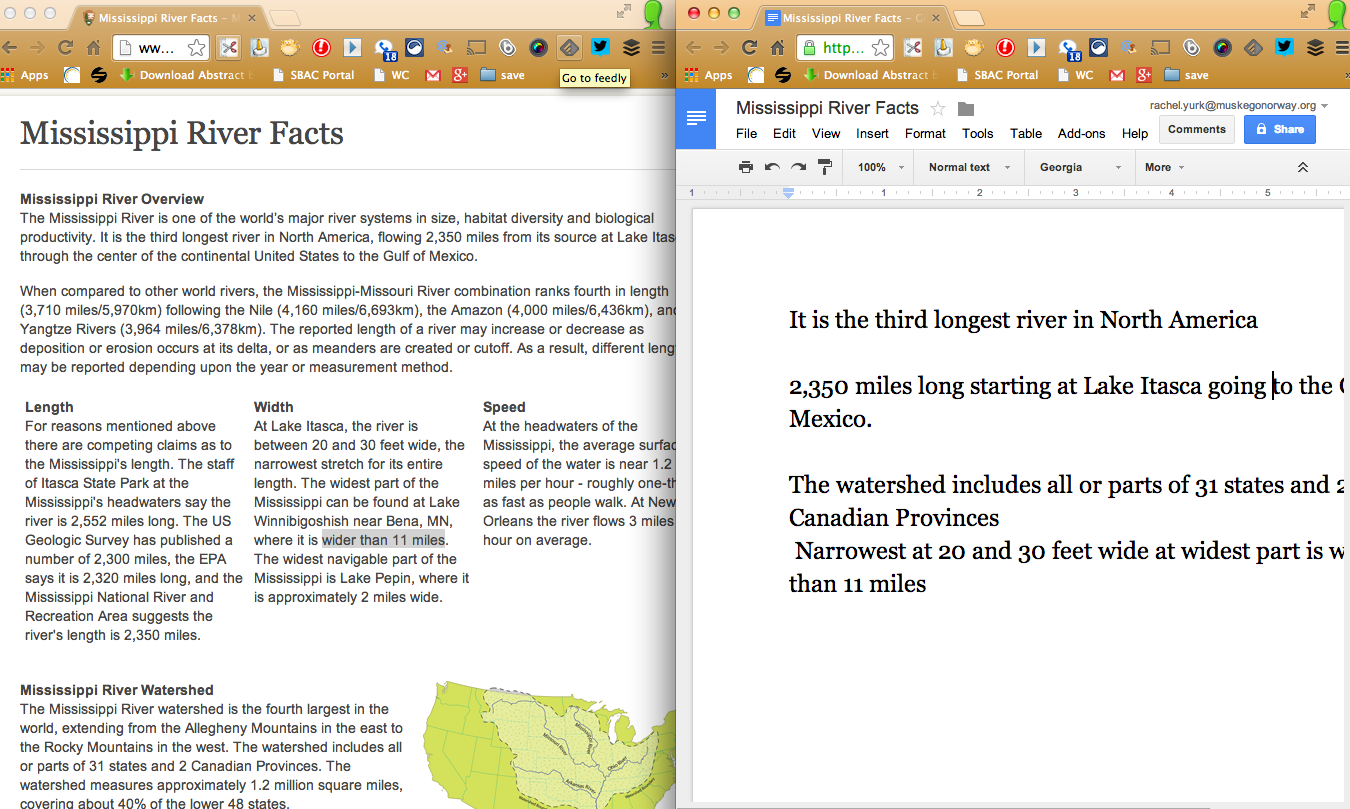
As we are not working within Google Apps for Education so much of our work including preparation of presentations, work processing, etc. happens in a browser between many tabs. Sometimes you find yourself frequently switching between tabs.  While it would be convenient if we all had a second monitor to place one window on each monitor while we work, that is often not the case.   Tab Scissors allows you to split your browser window into two separated windows  at the tabs you indicate.  Simply click the tab of which you want Tab Scissors to split the browser window, click on the Tab Scissor icon, and your page will refresh as two perfectly split pages allowing you to see both tabs simultaneously.  Tab Glue, when clicked, will paste these tabs back together as one.  

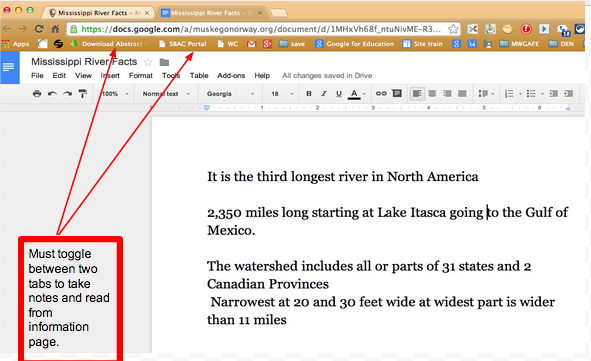
See the image for an example:
Working between two tabs
Using Tab Scissors to split the window:
Split window notes
So what does this mean in the classroom and how can it help my students? 
As our students are becoming more and more proficient with taking notes, identifying important information, paraphrasing content, and talking in multiple visual cues, we need to find ways to incorporate those skills into everyday teaching.  The SMARTER Balanced Assessment had students working with a split screen throughout the entire testing situation.  The content on wither side of the window can change, but if they are not practiced at attending and using both windows, they will struggle there and in other areas of digital literacy.  Why not practice this concepts with our current content so it does not seem so foreign as we go into testing situations?  Here a few suggestions for learning experiences that might help our students become proficient in using side-by-side windows.

  1. Note taking - As shown above a website on one side, notes or a presentation on the other.
  2. Video Notes - While there are some tools for video note taking, this might also be a way to have students view a video and take notes. (Students could even be doing this collaboratively!)
  3. Graphics - Interpretation of a graphic or map 
  4. Question sets - Create a Google Form with questions to match the media on the other side of the split screens.
  5. Resources - provide students with an important resource on the left such as a multiplication table or other reference material as they work.
  6. Direction or Steps - Use one screen as a reminder tool for those that need to see directions or steps while they work.
  7. Maps - Allow students to have a map as a resource while they watch a video or read resources about a new area of the country.
  8. Vocabulary - Provide a vocabulary key or have students develop a vocabulary list as they deal with difficult literature.
  9. Review - Have students take a practice test or pretest for a unit of study and capture notes on what they need to study additionally.
  10. Back-channel - Have students in small groups collaborate on a shared Google Doc as a Back-channel discussion while working with digital content.  


Thursday, February 20, 2014

Biblionasium - Social Reading for kids 6-13


Finding a site for kids to be active, have fun AND stay safe while doing educationally approved activities under age 13 is tough. Keeping kids safe online is incredible important so most sites decide to just limit use to over age 13 to be complaint with the Children's Online Privacy and Protection Act or COPPA.  When you do find a site, it is often challenging to navigate due to the privacy settings that must be in place.  Recently I heard about Biblionasium a social reading site for kids 6-13.  I am really excited for the features within this site.  Biblionasium allows teachers to set up accounts, select from various reading level scales to encourage kids reading at their appropriate levels, has a place for parents to get connected and involved, and incorporates a social experience all surrounding literacy.  It does not get much better than that.  The website is free and allows each teacher up to 200 student accounts which is also a fantastic feature.  Teachers can even set up reading challenges for the students.  There is so much in this site it is hard to pull it all together here.  The video below is just one of the many that the company has featured on their YouTube channel to support set up, use and understanding of their product.


Thursday, March 21, 2013

Google Lit Trips

A really fantastic literacy idea that any teacher could make use of is a Google Lit Trip. Google Lit Trips are free files that you can download that work with Google Earth.  The file will mark the events of literature by using the Google Earth location or setting that the book characters progress through over the period of the story.  It gives the reader extra resources, insight and experiences as they read the story   The Google Lit trip is a project that is supported by Google but remains free.  The intention of the resource is for students or readers of all ages to really get excited about reading and add a dimension through critical thought to their reading experience.  There are resources for educator from kindergarten to higher Education supported through Google Lit Trips.  You can explore literature from classics such as Make Way for Ducking to The Grapes of Wrath.  Current titles such as Walk Two Moons by Sharon Creech or Are We There Yet ? by Alison Lester are also available.  This is such a great resource!
Check out Google Lit Trips at:  http://www.googlelittrips.org/

RY