

Showing posts with label images. Show all posts
Showing posts with label images. Show all posts
Thursday, October 20, 2016
Beautiful Messaging
I recently came across the tool Pablo by Buffer as a great way to create some really awesome communication graphics. While intended to be used for social media, I have found it a great resource for creating creative graphic slides for the message boards in our libraries. While the feature to add quotes easily from the bank of available quotes is awesome, I to find that the ability to add my own text is more valuable. The images are awesome and the search-ability make the tool really efficient. I have not only use this for our display screens but they make some great slides when inserted in a Google Slide presentation as well. Give it a try!


Thursday, October 22, 2015
Dress up those Presentations!
A while back I learned about Slides Carnival as a resources for some great presentation templates to dress up Google Slides. I used many of them and was pleased with how easy they were to copy and use. Slides Carnival not only provides you with great templates but each template has some awesome presentation tips and guidelines for creating better presentations. The second slide of the presentation generally give instructions for use as well as the attribution requirements for the graphics within the slide making it easy, clear and fun to build off of some great ideas.
This week I revisited Slides Carnival to see if there were new templates I might use and was pleasantly surprised to find that they have added several new ones. And they are FREE! Specifically the Halloween 2015 Slide Carnival Template Deck would make for a fun Halloween themed lesson full of pumpkins, cats, spooky font and more. Check it out by clicking here.

From the last time I visited, only a few months back, there are 8-10 new templates for various topic and styled presentation. They are so useful for their flowcharts, graphics and backgrounds. Most of them include tables and maps but they all have a series of icons and clearly support a one color presentation styled focus.
Give Slides Carnival a peek to add some variety to your classroom lesson slides. Communicate creatively!
This week I revisited Slides Carnival to see if there were new templates I might use and was pleasantly surprised to find that they have added several new ones. And they are FREE! Specifically the Halloween 2015 Slide Carnival Template Deck would make for a fun Halloween themed lesson full of pumpkins, cats, spooky font and more. Check it out by clicking here.
From the last time I visited, only a few months back, there are 8-10 new templates for various topic and styled presentation. They are so useful for their flowcharts, graphics and backgrounds. Most of them include tables and maps but they all have a series of icons and clearly support a one color presentation styled focus.
Give Slides Carnival a peek to add some variety to your classroom lesson slides. Communicate creatively!
Wednesday, September 2, 2015
Simple Formative Assessment
I am always looking for an easy way to digitally complete formative assessment for teachers. It seems like there are always so many different hoops to jump through to get to the actual assessment piece and so when my friend Tim Childers tweeted out about Formative, a great tool for collecting live formative results from students, I investigated. (Actually, for most people who know Tim, we all listen when he Tweets, posts or otherwise makes his digital mark. It is always good and you should all follow him here @tchilders.)
Formative assessment is loosely defined as assessment used to collect feedback that guide the lesson, and learning for the students. Generally they are low stakes assessments that help personalize and support the flow of the instruction. With that in mind, Formative is a tool for collecting information that helps the teacher better know what students need.
One unique feature of Formative is that it allows for personal responses in the form of written responses, drawings or even through the submission of an image. With the ability for a student to submit an image or drawing it opens opportunity for creative unique responses that are otherwise hard to collect. A sample of the tutorial drawn responses is shown below.

With Formative teachers will be able to view live results of the students as they work in class. Another great feature is the ability to share an assessment with other teachers.
Upon logging in as a teacher you are presented with the Formative dashboard and a tutorial and sample assessments to help you get going. Formative also has this great Google Doc to walk you through their product. Formative has a channel on YouTube full of various topics in which you can learn all you need to know. They are very well done and brief enough to allow you to select only those that you need to get going. The introductory video is here and should give you a great overview.
Formative's claim is that the tool works on any platform. I have not tried it on all devices but I would guess that some forms of entry, such as drawing a response, would be easier on a tablet device than a Chromebook or computer. Additionally, it is important to know that Formative's Privacy Policy requests that if a child in under the age of 13 that consent is obtained by a parent or guardian.
I am really excited to see how Formative can be used in various classrooms. Please share or comment if you are or have used it!
Formative assessment is loosely defined as assessment used to collect feedback that guide the lesson, and learning for the students. Generally they are low stakes assessments that help personalize and support the flow of the instruction. With that in mind, Formative is a tool for collecting information that helps the teacher better know what students need.
One unique feature of Formative is that it allows for personal responses in the form of written responses, drawings or even through the submission of an image. With the ability for a student to submit an image or drawing it opens opportunity for creative unique responses that are otherwise hard to collect. A sample of the tutorial drawn responses is shown below.

With Formative teachers will be able to view live results of the students as they work in class. Another great feature is the ability to share an assessment with other teachers.
Upon logging in as a teacher you are presented with the Formative dashboard and a tutorial and sample assessments to help you get going. Formative also has this great Google Doc to walk you through their product. Formative has a channel on YouTube full of various topics in which you can learn all you need to know. They are very well done and brief enough to allow you to select only those that you need to get going. The introductory video is here and should give you a great overview.
Formative's claim is that the tool works on any platform. I have not tried it on all devices but I would guess that some forms of entry, such as drawing a response, would be easier on a tablet device than a Chromebook or computer. Additionally, it is important to know that Formative's Privacy Policy requests that if a child in under the age of 13 that consent is obtained by a parent or guardian.
I am really excited to see how Formative can be used in various classrooms. Please share or comment if you are or have used it!
Friday, March 13, 2015
Take a Tour or Create your Own!

Google Earth Tour Builder, while not a new tool is one that came to mind after sharing yesterday's post about the resource myHistro. Both tools are similar and make use of maps and visuals. Google Tour Builder combines Google Earth and a slideshow in which you can incorporate images, videos and text to connect locations all across the globe to tell a story. While the first thought that comes to mind might be history, there are plenty other ideas for use including biographies, tours of locations, field trip summaries and literature studies.
Google Tour Builder is a tool that requires a computer (not a Chromebook or iPad). On the computer it does require the Google Earth Plugin.
Creating a Tour is not challenging! Check it out!
1. Begin at www.tourbuilder.withgoogle.com. Sign in to your Google Account and click "Create New Tour".
2. Complete the "let's get started" page.

3. The Next page is where you begin to introduce you Tour. Complete the highlighted items and use the available tools to manage the view.

5. Type your location into the search or drop a placemark in a location you see on the map. Click "add to tour".

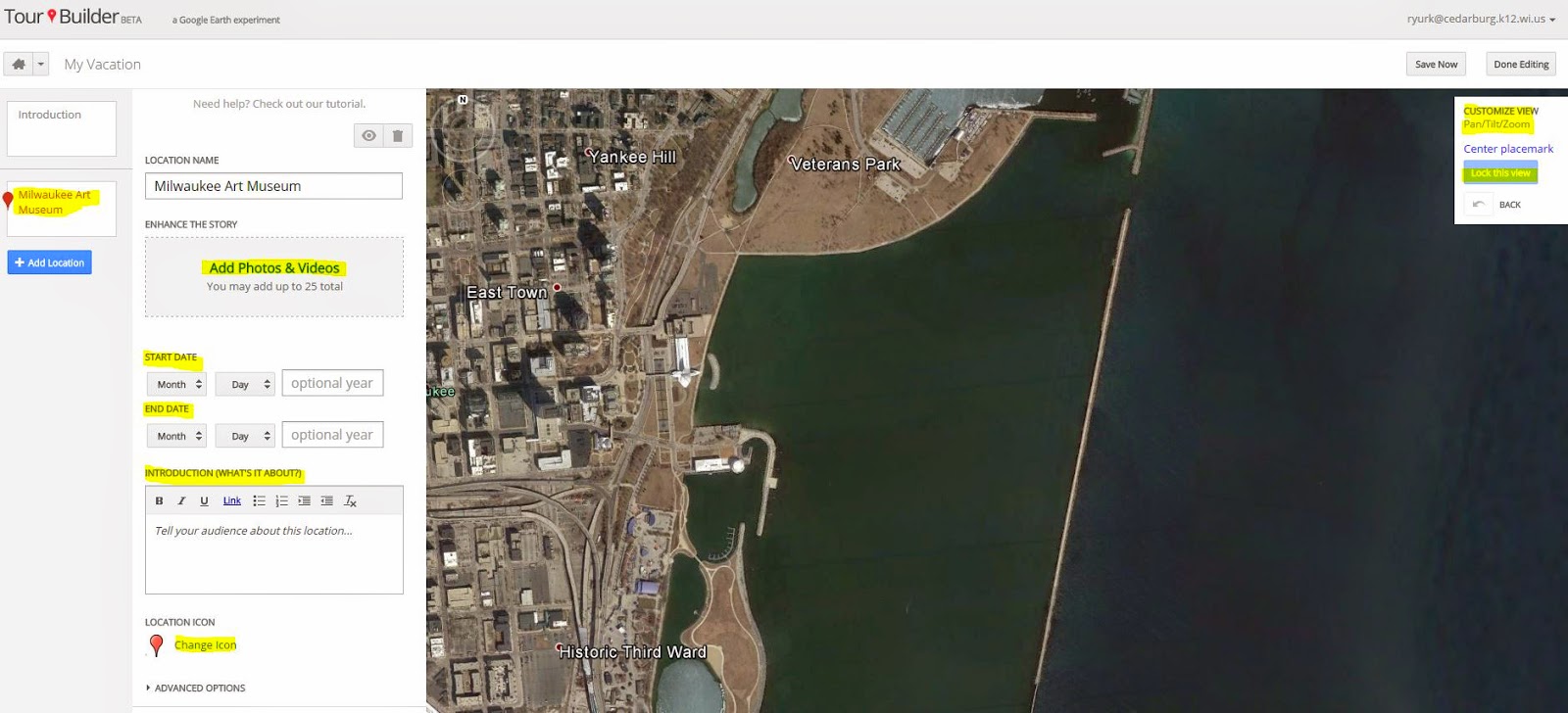
7. Continue to add your locations and they will build on the tour timeline on the left. Once you are done, click "Save Now".
8. Then, just as you would share another Google Doc, you will see a "share" button in the top right hand corner. Click on the share button and change the visibility to your desired settings. Click "done" and you have created your first tour!
If this step-by-step does not help you out, give this tutorial a try!
Wednesday, September 24, 2014
Google Maps in the Classroom
Google Maps are not just for getting around when you don't know your way...
Google offers some great ways to make use of maps in the classroom. They offer tutorials and resources for all types of map use. From beginning tutorials to more complex, there is a lot to consider. One thing is for certain, this is a resource I wish I saw more use of in the classroom.
Here are a few ideas that I found as I did some exploring:
Google Earth - Allows students to interact with and explore the world in ways unique to the computer experience. While we would all love to head out to Rome and see the history and artifacts there, Google Earth uses imagery that allows kids to travel back in time and view different locations to see how they have changed. with resources that show ideas such as they US Presidents or the trail of Lewis and Clark, this resource will add amazing depth to your units of study. Explore 3D imagery of locations such as Mars in Google Earth or the landing sites of the moon. Students can make use of Real World Math and other lesson plans that use Google Earth to learn new skills. Additionally, Using Tours you can create and play tours of places and content. Tours are a "flying" Google Earth experience in which students will be able to view terrain, maps and navigate using 3D images and even audio. So much to explore.
Google Maps - One of the many resources that Google provides to users is the Google Map. There are many ways in which you can use Google Maps each allowing for different ideas within the classroom. One of my favorite ways to make use of Maps is to use Maps Engine to build your own map. The tool allows you to draw on a map, enter and visualize data, add layers and set specific points for various resources. An easy to follow tutorial can be found here.
Additional Resources:
Google Maps in the Classroom - Created by CUE and WestEd for Google
Google Maps - from Teaching History
How to Create a Map Using Google Maps Engine
40+ Ideas on Using Google Earth and Maps in the Classroom
Videos:
Wednesday, May 21, 2014
Add-On Additions!
Google Docs has a few new Add-Ons that are worth checking out! It had been a while since I check back into the Google Add-on menu. I suspect that the resources available in the Google Docs Add-on page will grow quickly and in just the past few weeks there are some notable new ones.
If you are not familiar with Google Docs Add-ons, they appear in the main menu bar after opening a Google Doc or Sheet. You will see different Add-ons depending on which App you are using. The ones that run on a Google Spreadsheet (like the Doctopus Add-on) have no use for a Document, so they do not show when entering the Add-ons from a Document. To explore the Add-ons first open a Document or Spreadsheet. In the top menu bar, click Add-ons, and Get Add-ons as shown:


If you are not familiar with Google Docs Add-ons, they appear in the main menu bar after opening a Google Doc or Sheet. You will see different Add-ons depending on which App you are using. The ones that run on a Google Spreadsheet (like the Doctopus Add-on) have no use for a Document, so they do not show when entering the Add-ons from a Document. To explore the Add-ons first open a Document or Spreadsheet. In the top menu bar, click Add-ons, and Get Add-ons as shown:
Much like you would see in the Google Store, you will see icons of the available Odd-ons. Clicking on the icon will bring up information about that specific tool. The benefit of Add-ons is that they work within the document type that you are working on and you do not have to leave the document to make use of the tool. When this feature first become available, you just knew it was something that would take off, and I suspect it is beginning to!
Here are a few of the new Add-ons I am excited to explore how they can make a difference in the classroom as well as some that have been there from the start but are worth looking at again!:
Docs Add-ons
g(Math)
This Add-on addresses a problem that math teachers have complained about when using Google Docs for some time. This tool will allow the user to create complex math and graphs from within the Google Doc from a sidebar tool. There is a graph creator by which you type in an equation (y= formatted) and it will display the graph for the equation. It also will create geometric signs, custom characters and formulas. The creator of g(Math) has a great tutorial that will be valuable to those deciding if this is a worthwhile Add-on:
Openclipart
A second tool that is available in Google Docs is OpenClipArt. This resources provides over 50,000 images as clip art from a sidebar in the Google Docs window. This is a fantastic resource for educators and students wanting to add interest, color or image resources to their work.
Sheets Add-ons
Doctopus
Doctopus is a well-loved scripts that you used to have to access through the scripts menu but is now and Add-on. This script takes you class spreadsheet of names and emails and will organize and disseminate documents, assignments, and materials to certain or all students' Google Drives. It will name the documents for each student and will even allow you to set up sharing settings.
This video should get you started:
Flubaroo
Again, a well-loved script that is now available as an Add-on, Flubaroo is fantastic. This script will support you as you assess students. It will help you to grade, analyze and even email the students the results of the assessment. An overview video should help you see what this script has to offer:
All of these Add-ons seem to be "adding on" quickly to keep checking back for more!
Thursday, March 6, 2014
Engage kids with a Spotlight on Strategies from Discovery Education!

I am frequently told by teachers that they love the Discovery Education content and the video segments provide for quick hit media which engages students in the content in a form that they enjoy. While short videos are great, even they can become "just the average part of the lesson" when used often. Did you know there there are many other forms of media available in the Discovery Education service available to you? In addition, there is an entire series of lesson plans to introduce you to different instructional strategies for using this media. These ideas will help you keep the spark and interest in the media that you choose for the curriculum with which you are working.
After logging into Discovery Education, navigate to the feature section called, "Spotlight on Strategies". This section includes strategy ideas in lesson format with easy to use instruction for many types of media. Give the lesson, Sound Check a try to integrate the use of the many sound effects into a lesson to add interest and trigger memory for students. Or, try the Table Top Texting lesson for a time when you are showing a longer clip to keep students engaged in the media for a longer period of time. These are just a few of the many strategies you can find in the SOS section. Each one contains a downloadable PDF that if full of ideas and extensions for the great ideas. You can even download a folder that contains the whole batch. If you are interested in trying one or more out, let me know as I would love to team teach it with you! Check them out and check back often as this is a frequently added to section in your Discovery Education subscription!
Check out of the samples included below:

Sunday, February 16, 2014
Flippity - Digital Flash Cards

Flippity is a service that allows you to create and share digital flashcards through a Google Spreadsheet. There are many advantages to using a Google Spreadsheet as the content holder for the flashcards. Flippity makes use of them all. While it would be easy for a teacher to setup and fill the content of the course for the spreadsheet, it also could be collaboratively created by students in the class. The creation of several spreadsheets for a study tool might be something that groups who finish work early complete, then share with a teacher who creates a Flippity card set for the rest of the class. In addition to the ability to create the content easily, Flippity allows the creator to add media such as YouTube and images to the card deck. Here's an example of a few cards created using the Spanish word for "Cat" and a picture of a cat.
 |
| Side 1 |
 |
| Side 2 |
I've created a quick tutorial on YouTube of this resource to show you how easy it is to create a Flippity deck.
Thursday, January 16, 2014
Awesome Screenshot


With Awesome Screenshot you can capture a region, part of whole page. You then are given the option to annotate free-hand, with shapes text or further editing of the image. One of the really useful tools I liked was the ability to smudge or blur an area of the screenshot that you have captured. Many times I have sensitive or personal information on a screenshot that I cannot have display. The ability to blur that area and still use the screenshot is priceless. Once you annotate, you then have options for sharing, saving or storing the screenshot. Great tool that I know I will use and will be really helpful in the classroom for demonstrations as well!
View a one minute video about this extension below for more information:
Friday, January 10, 2014
Google and Images for Student Projects
Having a network of colleagues to mull over ideas and talk through strategies for the classroom is one resource I value. Not to gloat, but I do have a fantastic Professional Learning Network and this week they did not let me down. While participating in a Glide video chat with them, my friend Howard Martin mentioned the idea of using a shared Google folder with students to direct them to better, pre-selected content. I loved it so much I asked if I could feature it on this blog. So, thanks for sharing Howard! Your the best!
Finding images for student projects can be a tricky adventure. Many elements become cause for concern. Copyright, citations, the appropriateness of the image itself or the security of the search process. While there are many banks of images that schools supply (our district has a few really great resources), sometimes it is just easier to provide students with an image collection with which they can select from as they create their project. This eliminates (ton name only a few problems) students spending endless classroom time searching for the correct image, the possibility that a seemingly innocent search query leads to something that cannot be unseen, or the student argument that even though they have found the BEST image ever, if it does not meet with copyright restrictions, they still cannot use it in in the project. So, as Howard mentioned this week, use Google's shared folders for streamlining this process.
If students were presenting or researching on Hurricanes and Tornadoes and you wanted them to have focused accurate, and appropriate sources and information as well as proper citations but you did not have the class time to devote to the instruction of safe searching, citation building, etc., you might go about it this way. This would also be a great alternative for the student that has proven themselves to be less than trustworthy in searching on their own or is perhaps too young to handle the magnitude of content on the web.
Here the process:
Finding images for student projects can be a tricky adventure. Many elements become cause for concern. Copyright, citations, the appropriateness of the image itself or the security of the search process. While there are many banks of images that schools supply (our district has a few really great resources), sometimes it is just easier to provide students with an image collection with which they can select from as they create their project. This eliminates (ton name only a few problems) students spending endless classroom time searching for the correct image, the possibility that a seemingly innocent search query leads to something that cannot be unseen, or the student argument that even though they have found the BEST image ever, if it does not meet with copyright restrictions, they still cannot use it in in the project. So, as Howard mentioned this week, use Google's shared folders for streamlining this process.
If students were presenting or researching on Hurricanes and Tornadoes and you wanted them to have focused accurate, and appropriate sources and information as well as proper citations but you did not have the class time to devote to the instruction of safe searching, citation building, etc., you might go about it this way. This would also be a great alternative for the student that has proven themselves to be less than trustworthy in searching on their own or is perhaps too young to handle the magnitude of content on the web.
Here the process:
- Create a new Folder in Google Drive with permissions to share with your student using the "share" setting of the folder so that the folder is shared with the students in your class. (Be careful that students know that moving a document in a shared folder is a move and not a copy. I always create a copy of the folder so that if someone wipes out all my content I have a backup.)
- Load that folder with content! I started mine with a Google Document. I titled the Document "Citations" and you will see why as we continue. Under "Tools" select "research".

- On the Doc page, a side menu opens that allows you to research and collect Images, articles, links, quotations, etc. If you sort for only copyright safe images as shown, you know you are using images that students can use in their work. Change the citation format to the type you would want them to use.

- As you select content, and drop it on the page, it collects not only a copy of the image, but also the citation in the format you selected at the bottom of the page. Since this document is in the folder, kids should have no trouble copying and pasting the citation. As my page was being built it looked like this:

- Then, for each image added to this citation Document I added the image to the folder. I carefully named and numbered the image so that it had the same number as the citation in the citation list as shown above. You may also note that there is a webpage link on "Hurricane Katrina" because I thought it might be interesting to see that this would also be a way of showing how you could share out on certain links with students.
- When my shared folder was done it appeared like this:

Subscribe to:
Posts (Atom)