This week while working on the resources for the monthly Digital Teacher Challenge in my district, I spent some time digging into Apps. Our theme for February is Get Appy! I concentrated on apps for all different tools as we have Chromebooks (Chrome Webstore and connected Apps), iPads (iOS Apps), and Android Tablets (Google Play Apps). Through this research I came across so many great resources both app and web-based, I thought it was a shame not to share here as well! So here's Five for Friday!
Read with Me - This great app helps teachers to assess fluency in students using custom options. Some of the custom features available in the app are the ability to add your own miscues, name the miscues in a way that makes sense and the ability to count or not count the miscue in the score of the student. Additionally the reports look to be quite complete. They are integrated with Google Sign-in and Schoology.
FlipQuiz - This jeopardy style review game is a simple fee way to make review games with kids. Find quizzes already built or create your own. You can add answers to the game board if you choose so that you can be hands-free and host the game as you walk around the room. Because all the answers are built in, you have the ability to send students a link to the game and they can play and review at home! This is a free resource but with the PRO version you will will get in-game score keeping, the ability to add your personal images, and many other features.
Hstry -This great resources allows you or your students to build a historical timeline rich with media (images, video and audio) in addition to the engagement features of commenting and quizzes or checks for understanding. Timelines can then be shared and easily embedded on a website or blog using the embed code generated on the site. With the free service you can have 200 student timelines. Explore this amazing timeline from their site on Life in the Colonies.
Algebra Calculator - This great resource is a calculator that gives a student step-by-step help on algebra problems. Students can use this to enter a problem and instead of the calculator generating just the answer, it generates each of the steps to get to the final answer with a short explanation of what those steps entailed.
Periodic Table - Chemistry Tools This is a free interactive app for exploring chemical elements and their dependencies in the periodic table. The app allows students to see the elements in various ways and makes the periodic table interactive. See the elements, details, atomic structure, boiling point and more. Student s can sort by properties, classification or state.
There are a number of review tools available for teachers to use to add interest to studying information. I hear the sounds of Kahoot, Socrative and Formative and I get encouraged by the excitement that is stirred in students through gamifying studying that I remember being boring a laborious. Another resource that I came across on Twitter today adds to the growing number of resources that can be used to encourage the excitement. Quizizz allows for multi-player practice encouraging collaboration. It does require that students under the age of 13 have parent permission, but it also has a way for students to play without registration. Similar to other resources, once a teacher initiates a quiz, a code is generated for the quiz in which students enter to play. Students answer the questions at their own pace and once they complete the question set, the can review their answers while awaiting the rest of the class to finish. Quizziz has many already created question sets of which you can try out. Give it a try. Here's a quick video walk through.
Additionally, Quizziz has added a feature for homework in which you can launch a quiz using the homework feature that will allow you to set a deadline for the homework. The assignment displays live and the reports feature will tabulate during the window of which you set for the quiz. They have recently added a feature to this that allows students to resume a homework game that they may have started before. This would be a great test review in which students begin in class and then finish at home!
Quizizz keeps a blog with some great tips that is worth checking out. I'd love to hear from anyone who give this resource a try! Let me know how it goes!
I could spend all day exploring the great things to do with maps in the classroom. Between Google Earth and My Maps, there are so many ways to explore the earth and connect it to content in the classroom. As I prepare to teach a class on this for staff, I got lost in the many games that are now available for kids to just have fun with maps. What is really great is that they work on a Chromebook making it something that kids can do on their own devices.
SmartyPins is a marriage of trivia and maps that is wrapped up in a fun game for kids. You begin by selecting a category (arts and culture, science and geography, sports and games, entertainment or history and current events). You are given 1,000 miles certain number of miles of which you can lose for inaccurate answers or gain for fast answers. Areas currently covered are the U.S., U.K., Australia and Canda.
Another equally fun but more interactive map exploring game for kids is called Geoguesser. This web-based game can be played in single player or challenge mode. You are dropped in a street view map and you have to guess where you are. You can move around the location, spin the view to explore and use clues to explore. You gain points while trying to guess 5 different locations. Additional games for various continents and topics are also available. Learn about the location while experiencing real street views! So much fun!
More and more schools are equipping students with Chromebooks as another tool in the toolbox of the 21st Century educator. Making use of the webcam is something that kids love to do but using it requires opening up app and resources that are not always the best for kids under the age of 13. While a resources like WeVideo is great, it has many steps and is not one I would consider to be a simple solution for a teacher that wants to do a simple one-take video. So, I went searching, and I found it!
Clipchamp is a web-based service that is great for kids as the videos that you make never leave your computer, there is no needed account to set up and it is free! Students can record up to a 5 minute video using ClipChamp. Once the video is recorded they can either download the video to their device or they can share it. Sharing the video give them options to send the video to Vimeo, YouTube, Facebook or.... GOOGLE DRIVE! Yea! How perfect for schools using Chromebooks! ClipChamp is also available as a Google Chrome App in the Chrome Web Store here.
Simple directions for using ClipChamp are here:
Clipchamp is marketed as a video trans coder or converter so you will notice that from the home page there are two options:
For classroom use and to simply record a video:
Go to ClipChamp.com
Click Record Video
Click to Allow the browser to access to webcam and microphone
After the 3, 2, 1 countdown, record the video
Once you are done, the screen will change to a green color and you will notice two buttons for "Share Video" and "Save to Computer"
The "Save to Computer" will save the video
Hover over Share Video and option of: YouTube, Facebook, Vimeo and Google Drive appear in the drop down menu
When you allow ClipChamp to save to the Google Drive, you will be given options as shown when saving. Complete the form and Publish!
From Google Drive the video can be shared with only certain people. The integration with Google Drive is key here because it allows students the opportunity to create a simple video and share it with their peers or teacher. Another great tool to help kids show what they know!
I am always looking for an easy way to digitally complete formative assessment for teachers. It seems like there are always so many different hoops to jump through to get to the actual assessment piece and so when my friend Tim Childers tweeted out about Formative, a great tool for collecting live formative results from students, I investigated. (Actually, for most people who know Tim, we all listen when he Tweets, posts or otherwise makes his digital mark. It is always good and you should all follow him here @tchilders.)
Formative assessment is loosely defined as assessment used to collect feedback that guide the lesson, and learning for the students. Generally they are low stakes assessments that help personalize and support the flow of the instruction. With that in mind, Formative is a tool for collecting information that helps the teacher better know what students need.
One unique feature of Formative is that it allows for personal responses in the form of written responses, drawings or even through the submission of an image. With the ability for a student to submit an image or drawing it opens opportunity for creative unique responses that are otherwise hard to collect. A sample of the tutorial drawn responses is shown below.
With Formative teachers will be able to view live results of the students as they work in class. Another great feature is the ability to share an assessment with other teachers.
Upon logging in as a teacher you are presented with the Formative dashboard and a tutorial and sample assessments to help you get going. Formative also has this great Google Doc to walk you through their product. Formative has a channel on YouTube full of various topics in which you can learn all you need to know. They are very well done and brief enough to allow you to select only those that you need to get going. The introductory video is here and should give you a great overview.
Formative's claim is that the tool works on any platform. I have not tried it on all devices but I would guess that some forms of entry, such as drawing a response, would be easier on a tablet device than a Chromebook or computer. Additionally, it is important to know that Formative's Privacy Policy requests that if a child in under the age of 13 that consent is obtained by a parent or guardian.
I am really excited to see how Formative can be used in various classrooms. Please share or comment if you are or have used it!
PowToon announced today that they are giving away $10 Million of classroom accounts for the school year! How cool is that? Wondering what PowToon is and why you might want to sign up? Read on....
PowToon allows you to create great animated lesson plans and presentations that are fun and engaging. All the animation tools are right there in the dashboard to get you started in creating great videos. The dashboard will guide you through the process of creating the videos. Once you finish you can download the video to keep forever or push the video to YouTube. PowToon is a great alternative to PowerPoint or traditional slides. Give it a try!
With this great FREE gift from PowToon you will get:
The Complete Slides pro package
24/7 premium support
HD video for teachers
Up to 60 students having access for free
up to 15 minute videos + presentations
Royalty free styles, tunes + images
As I know it always comes up, the statement below indicates that they are COPPA compliant. Children’s Online Privacy Protection Act Compliance We are in complete compliance with the requirements of COPPA (Children’s Online Privacy Protection Act). We do not collect any information from anyone under 13 years of age. Our website, products, and services are all directed to people who are at least 13 years or older.
In an effort to focus as well as digitize the learning experience for students there are a number of resources out there to explore. Many of them with similar features. Working with teachers it becomes challenging to know just what would be the preferred resource for each classroom. So, I thought I would showcase them all in one location.
PearDeck is an inquiry-based learning tool. A teacher creates a presentation and shares it with the students through a code. The teacher sees which students have joined the session. As the teacher advances, the displayed teacher screen requests students to respond in a variety of ways. The teacher can lock in student answers so they can no longer change them and display all student answers joined on one screen. These responses can be in text form, by sliding a marker on a map, giving a thumbs up, drawing or other standard responses. Tools such as dragging a marker on the screen, drawing and Google Slide importing are a part of the paid features. For free teachers can have up to 30 participants, use text slides, multiple choice, number slides and unlimited PearDecks. PearDeck is available in the Chrome WebStore.
Chromebooks have a lot of great abilities that are often underused. One such ability is the webcam. In many schools where we turn off the student's access to Google Hangouts, the students are left with few uses for the webcam. However, the webcam can be a powerful tool not only to take video, but also to take images and add creativity to student work. When we can make use of a student's images, videos, hand drawings and authentic work, we add credibility to their work that adds to a feeling of ownership of their work. In an effort to capture some of these ideas, I created a list ideas. To be clear the goal is not the use of the technology, but the gain that the student has in ownership, creativity and personalizing their work. Here are just a few ideas that I just know will make the difference for some of your talented students!
Artwork Portfolios - Before sending artwork home to students, have them snap a photo of the work and blog about it. They can explain the process, what they learned and capture their thoughts on the project. Then, share these reflections with the parents. From a parent's perspective, I find I get the artwork home with my kids but rarely have an appreciation for the work involved or learning that my children gained through the project. Additionally there is a great record of the project.
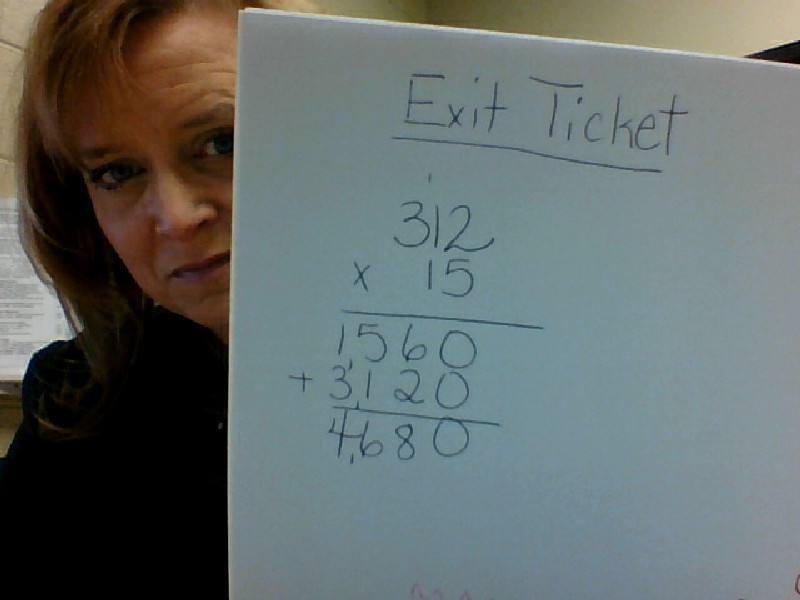
Show Your Work! - Have students share their work in math often hard to capture or create digitally. What I love about this is the ownership that students have as it is still in their own handwriting. Students can then draft the steps to solving the problem in text along with the image shown. In my sample I peeked around the page as I took the picture but how cute would it be to have a student's
Snap a Team Selfie - Have a group of students snap a team selfie to show who worked on a project and then display this as an opening slide for a presentation. Give a little ownership!
Capture the Process - We often say that the journey is more important than the destination but we only celebrate the final product with students. So much of the learning happens as students move along a learning process. Capture the steps to the process, the struggles, successes and landmarks through photos.
Create Photo Assessments - Have students submit a photo and summary of their work and learning as an assessment and record of their learning.
It seems like this small list just scratches the surface of the many creative ways you could use images and the Chromebook's camera. What ways do you use it?
I recently had the pleasure of attending my high school aged daughter's parent teacher conferences. She's a really good student and so I always enjoy going as I know it will be positive and fun educational conversations. This term was not really much different although I got to hear her Honors English 10 teacher rave about a website she has discovered. I sat back and took in her excitement, recognizing that moment when a teacher is "on fire" with a new tool for their classroom toolbox. She excitedly told me about No Red Ink. I decided to check it out and this is what I learned:
This website is built to help kids learn to be better writers through the use of grammar instruction. The site polls students about their interests, favorite books, movies, peers, etc. and then uses those results to build grammar questions about those things in which they are interested. The work kids do is adaptive and keeps records for teachers all while scoring the work for them. The site is free for parents, students and teachers. There is unlimited practice so that the class time is not taken up with grammar practice. A great introductory video is included below. Winder if this might fit in your classroom? Me too?
Oral reading fluency can be so difficult to assess naturally with students as well as time consuming. As an educator collecting running records from students I have often wondered about the students who get nervous reading aloud to me and how that affects their performance. Then I heard about Fluency Tutor by Texthelp, and I can't wait to see it in action.
Fluency Tutor is an online tool, available in the Chrome Webstore as an app for both students and teachers, that supports oral reading fluency and comprehension. The software incorporates Lexile-leveled passages for students in elementary and secondary levels. Students are able to work independently to practice reading, record and submit assessments and monitor their progress. Educators can assign specific passages to practice or assess, collect and listen to the students' submitted work and then mark or score them when time allows. Teachers can set targets for students including Correct Words Per Minute and Lexile levels. Parents have the ability to listen to the information the students have recorded as well.
After learning more about this resource, I wondered about that shy or those that get anxious about reading in the corner or hall to their teacher of reading specialist. This resource seems like it would break down this barrier for many students. I am excited to explore this software with students!
Sometimes we all need a little help. Time is short and we need to get to the point. Sometimes you just want to get the general gist of something before you invest too much time in a resource or topic. That is what TDLR can do for you! This week, Todd Bugnacki (actually his daughter shared it with him first), shared TLDR and it intrigued me. I looked into it and this is what it is all about:
This is an extension for Google Chrome. An extension is a feature or functionality that can be added to your browser (Chrome) that will allow it to do something it does not normally do. TLDR or Too Long Didn't Read is free in the Chrome Webstore here when used on a webpage, will create a summary of any web article that your browser is displaying all while staying on that page. The extension will appear as an icon to the right of the address bar in your Chrome browser once you add it. The user has the ability to choose how condensed the summary is of the page. Choices span from a summary, short, medium or long version of the page. These versions map the length of the article from 25%, 50%, and 75% of the original article length. Information from the reviews also indicates that it supports German, French and Spanish as well..
Summary in Medium
The use of this tool for personal reasons seems endless as we seem to take in so much more of our information from the web. News, media, etc. can be time consuming to take in and a shortened version might be a real time saver. I am curious how you might make use of this resource in the classroom or if it might hinder learning. Feel free to comment regarding this below.
A brief tutorial for the use of the extension from the makers of the extension is below.
Google Maps are not just for getting around when you don't know your way...
Google offers some great ways to make use of maps in the classroom. They offer tutorials and resources for all types of map use. From beginning tutorials to more complex, there is a lot to consider. One thing is for certain, this is a resource I wish I saw more use of in the classroom.
Here are a few ideas that I found as I did some exploring:
Google Earth - Allows students to interact with and explore the world in ways unique to the computer experience. While we would all love to head out to Rome and see the history and artifacts there, Google Earth uses imagery that allows kids to travel back in time and view different locations to see how they have changed. with resources that show ideas such as they US Presidents or the trail of Lewis and Clark, this resource will add amazing depth to your units of study. Explore 3D imagery of locations such as Mars in Google Earth or the landing sites of the moon. Students can make use of Real World Math and other lesson plans that use Google Earth to learn new skills. Additionally, Using Tours you can create and play tours of places and content. Tours are a "flying" Google Earth experience in which students will be able to view terrain, maps and navigate using 3D images and even audio. So much to explore.
Google Maps - One of the many resources that Google provides to users is the Google Map. There are many ways in which you can use Google Maps each allowing for different ideas within the classroom. One of my favorite ways to make use of Maps is to use Maps Engine to build your own map. The tool allows you to draw on a map, enter and visualize data, add layers and set specific points for various resources. An easy to follow tutorial can be found here.
Reading on a digital device is what you make of it, but reading on a digital devices that has an enhanced effects is really fun! That is what Booktrack Classroom is all about. This great site allows a teacher to create a book or essay to be published for students with enhancements in the form of a movie-style soundtrack and sound effects. Studies cited on the website indicate that there is a significant increase in comprehension and engagement for those students who read using Booktrack. Booktrack is an app in the Google Chrome Webstore!
Creating an account, class and students seems to be simple. See blow for information on Terms of Service. I am excited to see how this can be used with text from a site such as Newsela with the added soundtrack enhancements to engage students with text right at their level. Another really great tool natural to reading text using Booktrack is that you can adjust the pace of the track to provide the reader with a more successful pace of reading. Students that create and publish their own writing through this site can then add a soundtrack to their own work, adding interest and excitement.
The Terms of Service on this site indicate you cannot create and account for kids under 13 although that is unclear as the teacher blogs are very clear about its use with kids at the elementary level. I have written the help desk for clarification to see if that only applies for the creation studio or if it apples to all around use. I'll update this post if I hear back.
Here's a great video that will give you an idea of how this tool works:
I am super excited about Super Quiz! There are a few really great Add Ons out there for Google Docs. Super Quiz, an Add On available for Google Sheets has enormous potential for teachers that like to use Google Form to get a quick assessment for student work. What makes Super Quiz a more useful tool that Flubaroo, another tool used to grade or score a Google Form, is the Super Quiz will not only mark the answers of each student's submission, but it will grade upon submission, created a breakdown of scores in an easy to view format, allows for the teacher to generate personalized feedback of the performance of each quiz for each student as well as send the feedback pages to the students. That seems awesome enough, but the teacher can also create a "trigger" that will grade the form upon submission so that the entire process becomes an automatic process.
I see this being used in several ways for a classroom. Here are just a few of the ways I can see this being really helpful for a classroom:
Pretests for students prior to instruction.
Forms set up to be study guides/review for an upcoming assessment. Upon completion students receive a personalized document with suggested study paths for the larger assessment.
To assist students in selecting a preference for an upcoming project or learning style. A form is created in which students mark their likes and dislikes. Upon completion, Super Quiz's evaluation sends a suggested resource and path based on their responses.
Combined with the use of Flipped Learning Instructional Videos to assist students in self-differentiating and choosing applicable learning.
Results collected through Super Quiz can guide instructional groups within the classroom to target learning needs of the classroom.
***Outside of the classroom I have Super Quiz running on some self-guided Google Apps for Education professional development to assist the teachers in determining what areas they need to concentrate their time on. It seems to be running really well.
Setting up Super Quiz takes a little time although it is something that once you learn and understand it, it gets easier each time. The creator of Super Quiz has a great tutorial video here. Although lengthy it really helped me to set up the one that I have running complete with a trigger. In addition, there is a step-by-step tutorial on the Super Quiz creator's website here.
Blendspace is another resource (Similar to Been for Edu) that I am really excited to see used in a designated device environment. Using Blendspace a teacher can collect resources from various locations online for a class or lesson topic and share them out for learning by sharing just one URL to the class. I love this resource as it will allow you to share media and resources from all areas. You can share videos from YouTube, those that you have created yourself or from Educreations, a video creation resource. Presentations, documents, links, images, and the ability to bring information directly from your Google Drive, make it possible to easily focus the attention of the students on a topic or idea. In addition this tool would be very helpful in pulling together Flipped learning resources per unit in a class or course. Students are given a code used to get to the Blendspace class that you have created. There are ways to use quizzes within the resource, track students progress and easily adjust resources to meet the needs of the class.
I am super excited to share the fun resource supporting non-fiction, current events and teaches some great tips for online commenting all rolled into one resource. More and more we see that people are getting away from a newspaper subscription and reading content online. As more and more schools move toward a 1:1 environment, the collection of online media seems to be growing. The trouble is that you need to find resources that will keep kids safe, allow them to learn how to use them in a secure way, and provide content at their age level taking consideration for content and reading level. I believe that TweenTribune by Smithsonian will do that.
TweenTribune is a moderated comment sharing community where a teacher when registered for free, and assign educational content to students. Students log in using a screen name and have the ability to make comments of which the teacher moderates and can choose to post on the Teacher's TTribune page, or publicly in the TTribune site. Articles come from reputable sources such as AP, local newspapers and TV stations. They are vetted for grade and reading level. TTribune is very clear about the teacher gaining permission from parents to create accounts for students under 18 years of age, and also that they collect no information about the students, email addresses, etc. Creating an account is simple. The account automatically creates a list of classes of which you can rename. Adding students is simple and I love that they encourage you to use a safe naming system when you create the user names as shown in the screen capture below:
Once you have created an account and have students registered, you can begin to select articles. The articles are fantastic as they are sorted by grade span, have Lexile levels listed and a quiz should you decide to use it. As shown, you click "Assign" and the article will be placed on the class list of readings.
This resource is so great for kids and teachers to use. As far as I can tell you cannot assign a different article to different kids and I wonder if the best way to differentiate would be to create different classes to accommodate different groupings. TweenTribune is all supported via a free app for iOS. This video will help you to learn about it, or create and account and explore!

 Read with Me - This great app helps teachers to assess fluency in students using custom options. Some of the custom features available in the app are the ability to add your own miscues, name the miscues in a way that makes sense and the ability to count or not count the miscue in the score of the student. Additionally the reports look to be quite complete. They are integrated with Google Sign-in and Schoology.
 FlipQuiz - This jeopardy style review game is a simple fee way to make review games with kids. Find quizzes already built or create your own. You can add answers to the game board if you choose so that you can be hands-free and host the game as you walk around the room. Because all the answers are built in, you have the ability to send students a link to the game and they can play and review at home! This is a free resource but with the PRO version you will will get in-game score keeping, the ability to add your personal images, and many other features.
  Hstry -This great resources allows you or your students to build a historical timeline rich with media (images, video and audio) in addition to the engagement features of commenting and quizzes or checks for understanding. Timelines can then be shared and easily embedded on a website or blog using the embed code generated on the site. With the free service you can have 200 student timelines. Explore this amazing timeline from their site on Life in the Colonies.
 Algebra Calculator - This great resource is a calculator that gives a student step-by-step help on algebra problems. Students can use this to enter a problem and instead of the calculator generating just the answer, it generates each of the steps to get to the final answer with a short explanation of what those steps entailed.
 Periodic Table - Chemistry Tools This is a free interactive app for exploring chemical elements and their dependencies in the periodic table. The app allows students to see the elements in various ways and makes the periodic table interactive. See the elements, details, atomic structure, boiling point and more. Student s can sort by properties, classification or state.