Showing posts with label digital storytelling. Show all posts

Tuesday, September 1, 2015

PowToon That!

PowToon announced today that they are giving away $10 Million of classroom accounts for the school year!  How cool is that?  Wondering what PowToon is and why you might want to sign up?  Read on....

PowToon allows you to create great animated lesson plans and presentations that are fun and engaging.  All the animation tools are right there in the dashboard to get you started in creating great videos.  The dashboard will guide you through the process of creating the videos.  Once you finish you can download the video to keep forever or push the video to YouTube.  PowToon is a great alternative to PowerPoint or traditional slides.  Give it a try!


With this great FREE gift from PowToon you will get:

  • The Complete Slides pro package
  • 24/7 premium support
  • HD video for teachers
  • Up to 60 students having access for free
  • up to 15 minute videos + presentations
  • Royalty free styles, tunes + images

As I know it always comes up, the statement below indicates that they are COPPA compliant.
Children’s Online Privacy Protection Act Compliance
We are in complete compliance with the requirements of COPPA (Children’s Online Privacy Protection Act). We do not collect any information from anyone under 13 years of age. Our website, products, and services are all directed to people who are at least 13 years or older.

Friday, March 13, 2015

Take a Tour or Create your Own!

Google Tour Builder Header

Google Earth Tour Builder, while not a new tool is one that came to mind after sharing yesterday's post about the resource myHistro.  Both tools are similar and make use of maps and visuals.  Google Tour Builder combines Google Earth and a slideshow in which you can incorporate images, videos and text to connect locations all across the globe to tell a story.  While the first thought that comes to mind might be history, there are plenty other ideas for use including biographies, tours of locations, field trip summaries and literature studies.
Google Tour Builder is a tool that requires a computer (not a Chromebook or iPad).  On the computer it does require the Google Earth Plugin.

Creating a Tour is not challenging!  Check it out!

1.  Begin at www.tourbuilder.withgoogle.com.  Sign in to your Google Account and  click "Create New Tour".
2.  Complete the "let's get started" page.save image
3.  The Next page is where you begin to introduce you Tour.  Complete the highlighted items and use the available tools to manage the view.
4.  Click add a location on the left side panel
5.  Type your location into the search or drop a placemark in a location you see on the map.  Click "add to tour".
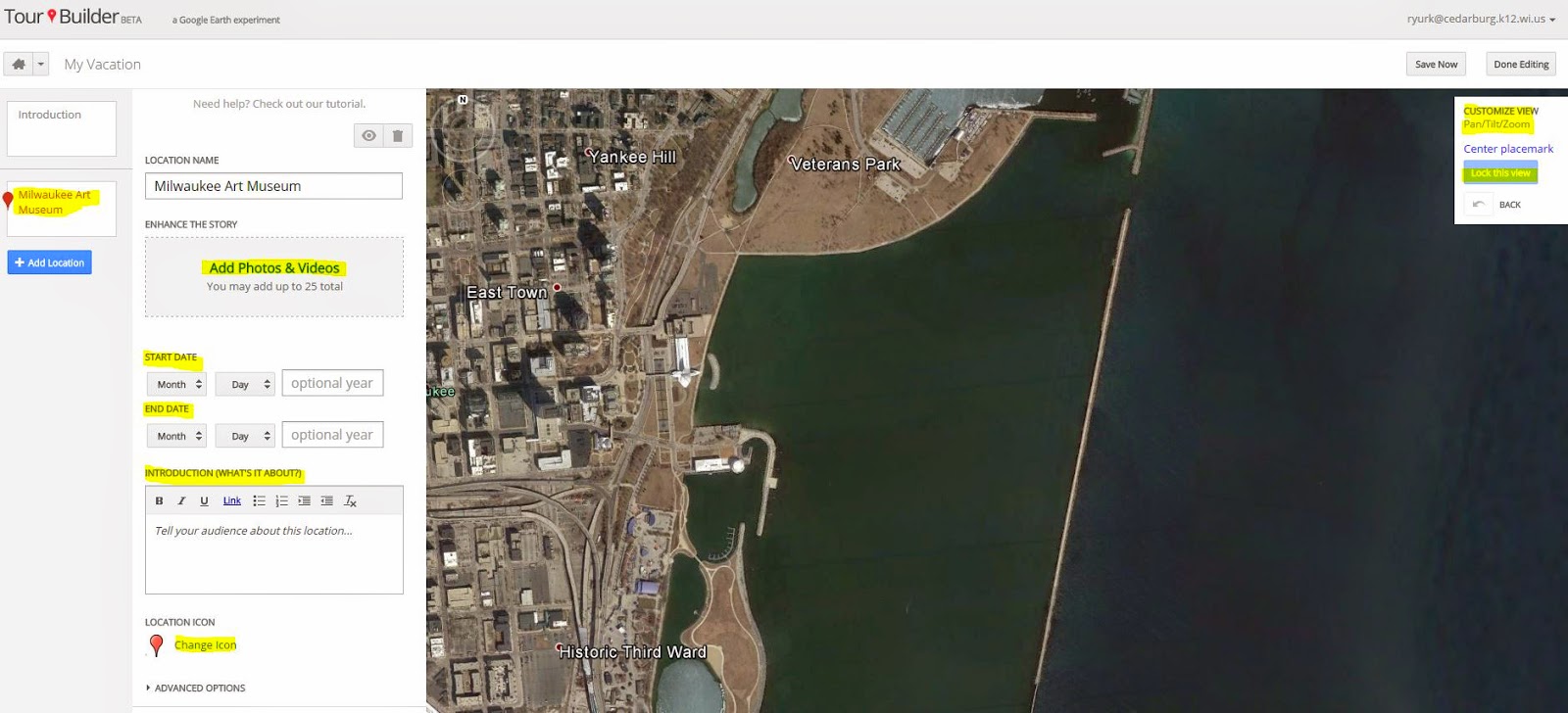
6.  Once you Add to tour you then open a window in which you can personalize this location.  You can add up to 25 photos and videos, dates, a story about the location, and even change the icon that represents the location on the map.  One area not to neglect is the Pan/Tilt/and Zoom of the view in which the location on the map is viewed.  Once you have it set, don't forget to "lock the view".
7.  Continue to add your locations and they will build on the tour timeline on the left.  Once you are done, click "Save Now".  
8.  Then, just as you would share another Google Doc, you will see a "share" button in the top right hand corner.  Click on the share button and change the visibility to your desired settings.  Click "done" and you have created your first tour! 

If this step-by-step does not help you out, give this tutorial a try!


Monday, February 16, 2015

Putting the Pieces of a Digital Story Together

Last week I began working with a great group of K-2 teachers to explore digital Storytelling.  We used the presentation and link below to explore the parts of a digital story.  Each of the participants will be building a digital story next time we meet. As the K-2 teachers are using iPads we are focusing mostly on the use of iPad apps although some to the resources are also accessible on the web or through Google Apps.  Just sharing the presentation I used as well as the site that was created to support the learning.